
TL;DR
A cloud portrait workflow works best when approved images sit in one clearly labeled folder, while drafts, alternates, and rejected files stay separate. Use version labels, expiring links, view-only permissions, and a short approval log before sending headshots to recruiters, agencies, clients, or collaborators.
A professional portrait often travels farther than the person in it: LinkedIn profiles, press kits, speaker pages, client decks, newsletters, and pitch materials all need the right image fast. Using photos on the cloud for sharing approved professional portraits prevents outdated headshots, wrong crops, and unauthorized edits from spreading across hiring, sales, and media channels. For people creating updated brand imagery, Looktara can help generate polished portrait options before the final approved files are organized and shared from a secure cloud folder.
Table of Contents
What are photos on the cloud for sharing approved professional portraits?
Photos on the cloud for sharing approved professional portraits are final, permission-controlled headshot files stored online so selected people can access only the versions cleared for public, professional, or campaign use.
They differ from a general photo dump because the folder contains approved assets only, with naming, permissions, and expiration rules built around professional use. Cloud storage providers such as Dropbox, Google Drive, iCloud, OneDrive, SmugMug, and photographer tools like picdrop or Lightfolio all support variations of this workflow, though their approval and gallery features differ.
Key insight: The cloud folder is not the approval process. The folder is the delivery layer for portraits that already passed review.
Core terms:
- Approved portrait: A headshot or brand image cleared for use by the subject, photographer, employer, agency, or client.
- Version label: A file naming tag such as
approved,web,print,square, or2026that explains the intended use. - Expiring link: A share URL that stops working after a chosen date, useful for recruiters, short-term campaigns, and agencies.
- View-only access: Permission that allows recipients to view or download files without editing, deleting, or reorganizing them.
Cloud sharing matters because professional images are reused across many channels. A fitness coach, for example, might need one image for LinkedIn, another for an email header, and another for Pinterest. Looktara supports those use cases with profile-ready options such as a fitness LinkedIn product photo generator, a fitness newsletter product photo generator, and a fitness Pinterest product photo generator.
How should an approval folder be structured?
An approval folder should separate drafts from final portraits, then label approved files by audience, crop, date, and usage rights.
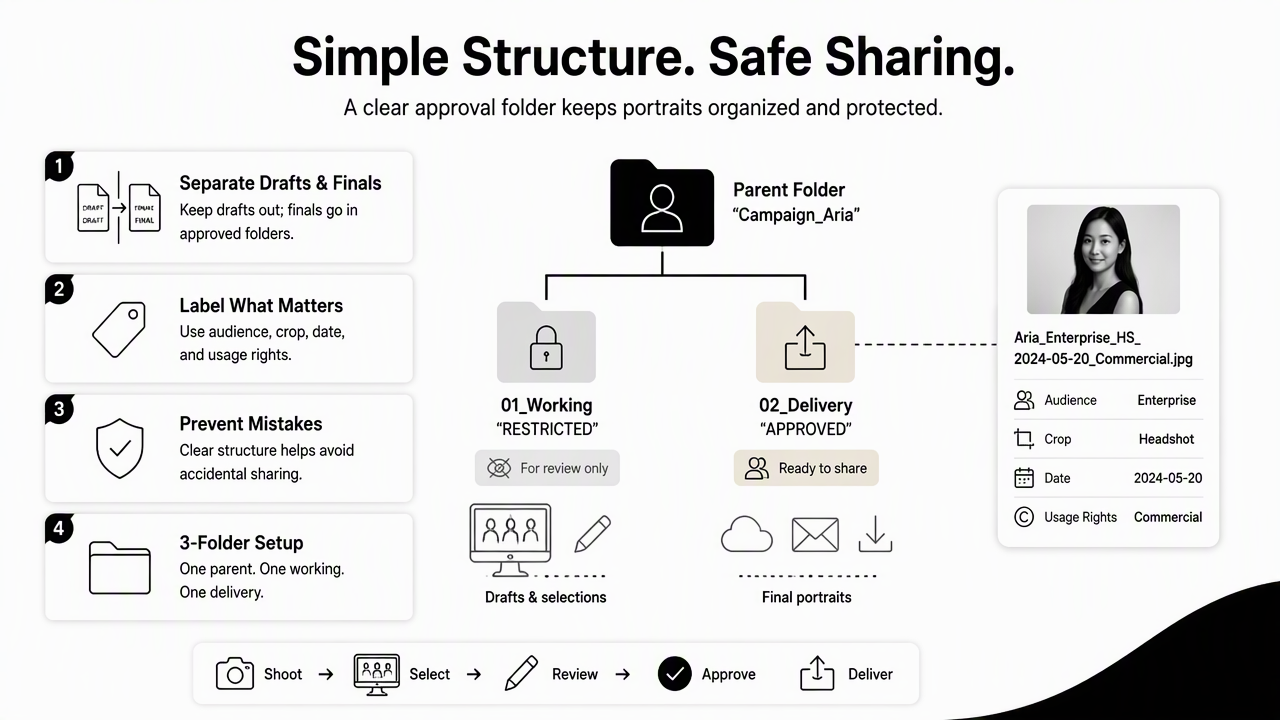
A simple structure prevents accidental sharing. The cleanest setup uses one parent folder for the person or campaign, one restricted working folder for review, and one delivery folder that contains only approved portraits. Recruiters, agencies, clients, and collaborators should never receive access to the working folder unless editing is part of their role.
Recommended folder structure
Use a folder structure that makes status obvious without opening every image:
Portraits_2026_Name_or_Brand01_Source_Uploads_Private02_Review_Selects_Private03_Approved_For_Sharing04_Archive_Do_Not_ShareApproval_Log_and_Usage_Notes
The approved folder should contain the least amount of content possible. Three to eight portraits often work better than 40 similar variations because recipients make fewer mistakes when the choice set is narrow.
Approval folder example for portraits
| Folder | Access | Contents | Best use |
|---|---|---|---|
01_Source_Uploads_Private |
Owner and editor only | Original uploads, raw images, rejected takes | Backup and editing |
02_Review_Selects_Private |
Owner, subject, approver | Shortlisted edits awaiting approval | Feedback and selection |
03_Approved_For_Sharing |
External recipients | Final headshots only | Recruiters, clients, agencies |
04_Archive_Do_Not_Share |
Owner only | Old portraits and replaced versions | Record keeping |
Approval_Log_and_Usage_Notes |
Owner and approver | Dates, rights, notes, restrictions | Governance |
This structure also helps when a portrait is replaced. A file can move from approved to archive without deleting the history, which is useful when older press kits or company bios still point to past assets.
Which permissions and link settings protect approved headshots?
The safest sharing setup uses view-only access, recipient-specific links, download controls where available, and expiration dates for short-term portrait requests.
Cloud providers usually offer several sharing modes. The right choice depends on the recipient and the risk. A recruiter may only need one downloadable LinkedIn image. A PR agency may need a small press kit. A designer may need a high-resolution file for a conference banner. Permissions should match that job, not the recipient's general relationship to the person.
Permission settings by recipient
| Recipient | Suggested access | Expiration | Notes |
|---|---|---|---|
| Recruiter | View and download one approved portrait | 30 to 90 days | Use a web-ready file and LinkedIn crop |
| Client | View-only or download approved set | End of project | Include usage notes for proposals or bios |
| PR agency | Download press-approved folder | Campaign end date | Add credit line and rights notes |
| Designer | Download specific sizes | Project deadline | Share print and web folders separately |
| Collaborator | View-only first, download if needed | Short term | Avoid edit access unless required |
A share link should never provide access to the parent folder unless every subfolder is safe for external viewing. The better pattern is to share the exact approved folder or even a single file.
Security checks before sending a link
Run a quick check before sharing any portrait link:
- Confirm the folder name includes
ApprovedorFinal. - Open the link in a private browser window to see what recipients can see.
- Confirm edit, delete, and upload rights are disabled for external viewers.
- Set a link expiration date for recruiters, agencies, and temporary collaborators.
- Remove metadata if location, device, or personal details should stay private.
- Add a short note explaining allowed use, such as
LinkedIn profile onlyorpress bio approved.
Research on AI and digital systems continues to stress governance and accountability as adoption grows. The AI100 panel report, Gathering Strength, Gathering Storms, reviews broad social effects of artificial intelligence and related systems in the 2021 Study Panel Report. For cloud portrait sharing, that larger lesson translates into a practical rule: access should be intentional, visible, and easy to revoke.
How should file names and versions be labeled?
Professional portrait files should be labeled with the subject, year, approval status, crop, resolution, and allowed use.
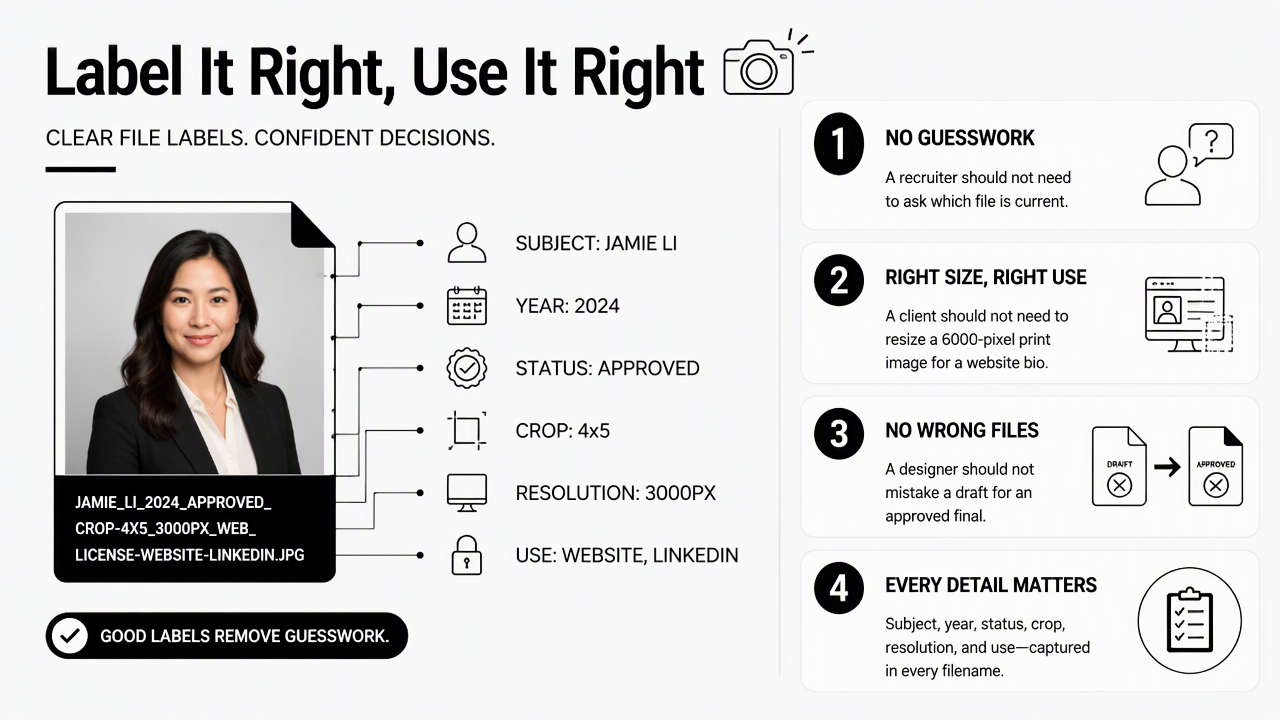
Good labels remove guesswork. A recruiter should not need to ask which file is current. A client should not need to resize a 6000-pixel print image for a website bio. A designer should not mistake a social crop for a full-resolution press image.
A reliable naming formula
A clean portrait filename can follow this pattern:
Name_Context_Status_Use_Crop_Size_Year.ext
Examples:
MayaChen_Headshot_Approved_LinkedIn_Square_1600px_2026.jpgMayaChen_BrandPortrait_Approved_Press_3x4_300dpi_2026.jpgMayaChen_Profile_Approved_ClientBio_Horizontal_2400px_2026.pngMayaChen_Headshot_Archived_LinkedIn_Square_2024.jpg
Labels should use plain words instead of internal shorthand. Approved is clearer than final-final, and Archived is safer than old. Dates matter because portraits age quickly when hairstyles, branding, job titles, or company affiliation changes.
Version rules that prevent mix-ups
Portrait version control works best with a few hard rules:
- Keep only current approved files in the shared folder.
- Move replaced files to archive instead of deleting them immediately.
- Use one master file for print and separate exports for web, social, and email.
- Add usage tags such as
LinkedIn,Press,Newsletter, orPitchDeck. - Avoid vague labels such as
new,best,final2, oruse_this_one.
For people refreshing a personal brand image set, the Looktara platform can create channel-specific portraits before the final selects are exported and labeled. A profile headshot, newsletter image, and Pinterest image may all be approved, but each one needs a different crop and file size.
How can approved portrait sharing improve in 2026 and 2027?
Approved portrait sharing is moving toward tighter identity checks, AI-assisted selection, richer rights notes, and shorter-lived public links.
Professional photos now support more than personal branding. They feed hiring profiles, creator media kits, event pages, client portals, internal directories, and social campaigns. That growth makes approval workflows more valuable because one wrong portrait can travel across many systems before anyone notices.
Practical improvements for 2026 workflows
The strongest 2026 portrait workflows combine cloud storage with a lightweight approval record. A simple text file or spreadsheet inside Approval_Log_and_Usage_Notes can track who approved the image, when approval happened, where it may appear, and when review should happen again.
Helpful fields include:
- Portrait filename
- Approval date
- Approved by
- Allowed channels
- Restrictions
- Expiration or review date
- Replacement file, if any
A 2023 study on dual eye tracking by Yana K. Smirnova examined attention and cooperation in a learning setting using eye-tracking technology. Although not about portrait storage, the broader research area highlights a useful point for image review: visual attention is measurable and imperfect, so approval systems should make the correct choice obvious.
What to expect next
Cloud portrait libraries will likely become more automated. File systems may flag duplicate images, suggest the best crop for each channel, and warn when an approved headshot is older than the review date. AI-generated portraits will also need clearer approval notes so recipients know which files are cleared for use.
Looktara fits this shift because modern profile imagery often starts with multiple generated options, then narrows to a few approved portraits. After selection, the same governance still applies: label the final images, store them in the approved folder, and share only the right link. For brand recall and direct access, head to looktara.com when new portrait options are needed.
Frequently asked questions
Approved portrait sharing works best when access, naming, and review rules are simple enough for non-technical recipients to follow.
What is the best cloud folder name for approved headshots?
The clearest folder name is usually Approved_Professional_Portraits_2026 plus the person or brand name. The word Approved should appear near the start so recipients understand that the folder contains usable images, not drafts. If portraits have different uses, add subfolders such as LinkedIn, Press, ClientBio, and Newsletter.
Should recruiters receive a folder or a single portrait file?
Recruiters usually need a single approved headshot, not a full folder. A single-file link reduces confusion and limits exposure. If several formats are useful, a tiny folder with one square crop and one vertical crop is enough. The link should expire after the hiring process or after a set review period.
How often should professional portraits be reviewed?
Professional portraits should be reviewed whenever appearance, role, branding, or business positioning changes. Many professionals also set an annual review date. The cloud folder should not keep outdated headshots in the active approved area because collaborators may keep using whichever file remains easiest to find.
Can AI-generated portraits be shared the same way?
AI-generated portraits can be shared through the same cloud workflow after approval. The key difference is documentation. The approval log should note that the image was generated or AI-assisted, list the approved uses, and identify the selected final file. Clear labels help agencies, recruiters, and collaborators avoid using draft variations.
Conclusion
A strong cloud workflow turns professional portraits into controlled brand assets rather than loose image files. The next step is simple: create a private review area, move only approved portraits into a sharing folder, label every version by use, set view-only or expiring permissions, and keep an approval log. When new portraits are needed before that workflow begins, visit looktara.com, choose the strongest final images, then store photos on the cloud for sharing approved professional portraits with confidence.
Generated by EarlySEO.com