
TL;DR
Accurate AI portrait prints depend on soft proofing, monitor brightness, ICC profiles, paper choice, and small test prints before a full order. The safest workflow is to export in a print-friendly color space, compare lab options, and fix common issues such as dark skin tones, color casts, and oversharpened facial details before ordering large prints.
Photo print color accuracy for AI portraits often fails for one simple reason: screens glow, paper reflects, and AI-generated skin tones can shift when a lab converts the file for ink or chromogenic paper. Color photography: photography that captures and reproduces color, rather than only luminance, depends on controlled color from capture or generation through final output. For professionals ordering LinkedIn headshots, founder portraits, dating profile images, or creator media, Looktara helps create polished AI portraits that still need print-aware preparation before turning into a frame-ready image.
Table of Contents
What is photo print color accuracy for AI portraits?
Photo print color accuracy for AI portraits means the printed image closely matches the intended digital portrait in skin tone, contrast, brightness, and overall color mood. The goal is not mathematical perfection on every device; the practical goal is a believable, consistent print that preserves the portrait's identity and professional feel.
AI portrait: a synthetic or AI-assisted image of a person, usually generated from reference photos or prompts, then edited for professional, social, or personal use.
AI portraits add a special color challenge because generative systems may smooth skin, brighten eyes, add stylized lighting, or create colors that look convincing on a phone but less natural on paper. A 2021 review by Nantheera Anantrasirichai and David Bull in Artificial Intelligence Review examined artificial intelligence in creative industries, showing how AI is now part of image creation and creative production workflows (source).
Key insight: a good screen image is only the starting point. A good print needs color-managed export, realistic brightness, the right paper, and a test before a large order.
The print process also matters. Chromogenic print: a C-print or C-type print is a photographic print made from a color negative, transparency, or digital image and developed through a chemical process. Inkjet, dye-sublimation, and chromogenic labs can all render the same AI portrait differently.
How should AI portraits be prepared before printing?
AI portraits should be prepared for print by checking resolution, color space, facial realism, brightness, sharpening, and export format before uploading to a lab. This step prevents the most visible problems: dark prints, plastic-looking skin, banding in backgrounds, and color shifts in hair, clothing, or neutral walls.
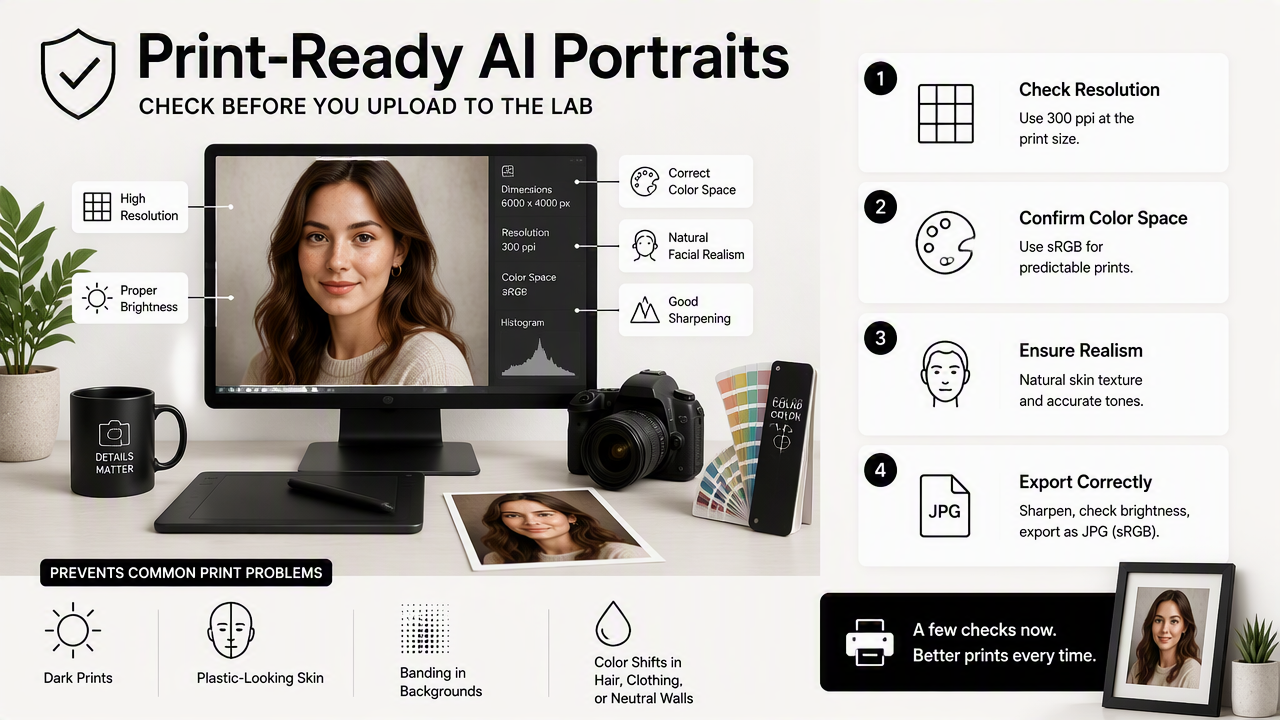
Print-ready file checklist
A print-ready AI portrait should pass a short technical check before any lab order.
- Choose the final crop first: set the crop for the intended size, such as 8 x 10, square, or A4, before editing color.
- Confirm enough resolution: keep the file large enough for the target print size, especially for face detail and hair texture.
- Use a standard color space: export in sRGB unless the printer specifically requests Adobe RGB or a named ICC profile.
- Inspect skin at 100 percent: check cheeks, forehead, lips, hands, and neck for waxy texture or uneven color.
- Reduce extreme sharpening: AI portraits can look sharp on screens but harsh on paper.
- Export a high-quality file: JPEG at high quality or TIFF when supported by the lab.
A broad 2023 review by Mahboob Elahi, Samuel Olaiya Afolaranmi, and José L. Martínez Lastra covered AI techniques across industrial equipment lifecycles, including how AI systems are applied across stages of a production process (source). The same process mindset helps portrait printing: generation, editing, proofing, output, and inspection each affect the final result.
Where AI portraits need extra scrutiny
AI portraits deserve closer inspection than ordinary camera files because the image may contain plausible but false detail. Subtle issues often become more obvious after printing.
- Skin tone transitions: watch for gray, orange, magenta, or overly smooth patches.
- Eye whites and teeth: overly white areas can print chalky or unnatural.
- Hair edges: generated strands may form halos against light backgrounds.
- Clothing texture: suits, knits, and collars may show strange repeating patterns.
- Background gradients: smooth studio backdrops can show banding on some printers.
The Looktara platform is most useful when the intended output is clear from the start, such as a business headshot, personal brand portrait, or dating profile image. A print-minded selection process favors natural facial color, balanced lighting, and clean edges over heavily stylized effects.
How do soft proofing, brightness, and ICC profiles control the final print?
Soft proofing, brightness control, and ICC profiles control print color by predicting how a digital file will look on a specific printer, ink, and paper combination. Together, they reduce surprises before a lab turns pixels into ink, dye, or chemically developed photo paper.
Color-control terms that matter
| Term | Plain-English meaning | Why it affects AI portraits |
|---|---|---|
| Soft proofing | A screen preview that simulates a printer and paper profile | Shows whether skin will darken, flatten, or shift color |
| ICC profile | A color profile describing how a device or paper reproduces color | Helps editing software translate colors for a lab or printer |
| sRGB | A common color space for screens and online labs | Safest default when a lab gives no special instructions |
| Gamut | The range of colors a device or paper can reproduce | Bright AI colors may fall outside print limits |
| Rendering intent | The method used to convert out-of-range colors | Can protect skin tones or preserve overall contrast |
Soft proofing works best on a calibrated monitor in a moderately lit room. A monitor set too bright encourages darker edits, which leads to prints that feel muddy. Many disappointing portrait prints are not caused by the printer alone; they come from editing against an unrealistic screen.
A practical soft-proofing workflow
A clean workflow keeps decisions simple and repeatable.
- Calibrate or visually standardize the display: avoid editing on maximum brightness.
- Download the lab's ICC profile: use the exact paper profile when available.
- Enable soft proofing: preview the portrait with the selected printer and paper profile.
- Check skin, neutrals, and shadows: compare face tones, white shirts, gray backgrounds, and dark hair.
- Create a print-specific copy: adjust that copy rather than overwriting the original.
- Export using lab instructions: avoid extra automatic corrections unless desired.
Key insight: print files should usually be a separate version, not the same file used for LinkedIn, Instagram, or a dating app.
Soft proofing cannot guarantee a perfect match because paper texture, viewing light, and lab processing still affect perception. Still, it turns guesswork into a controlled preview.
Which paper and print lab choices affect AI portrait color?
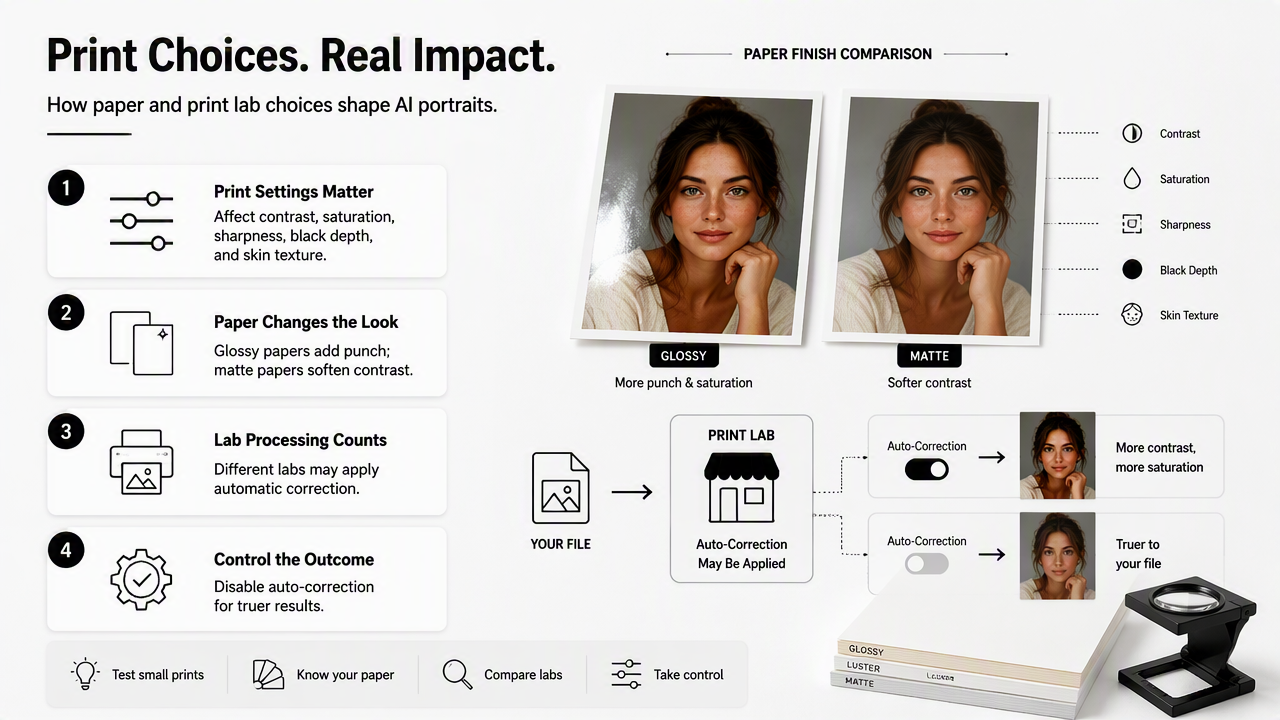
Paper and print lab choices affect AI portrait color by changing contrast, saturation, sharpness, black depth, and skin texture. Glossy papers usually increase punch, matte papers soften contrast, and different labs may apply automatic correction unless that option is disabled.
Paper choices for portrait use cases
| Print use | Better paper choice | Color effect | Best fit |
|---|---|---|---|
| Corporate headshot display | Lustre or satin photo paper | Balanced contrast with controlled shine | Offices, portfolios, event badges |
| Personal brand wall print | Fine-art matte or smooth rag | Softer contrast and less glare | Coaches, consultants, creators |
| Dating profile gift print | Semi-gloss or lustre | Warm, lively color without mirror-like gloss | Casual framed prints |
| High-impact promo image | Glossy or metallic | Strong saturation and deep blacks | Bold creator or musician imagery |
| Natural editorial portrait | Matte photo paper | Reduced shine and gentle skin texture | Subtle lifestyle portraits |
Paper is not just a finish. It changes how skin feels. Glossy media can make AI smoothing look more obvious, while matte media can make a portrait feel more natural but slightly less vivid.
Labs also differ. Some online services run automatic enhancement for contrast, exposure, red-eye, or saturation. That may help casual snapshots, but print-ready AI portraits often need those corrections turned off so the edited file remains the main source of truth.
When lab quality matters most
Lab choice matters most when the portrait has subtle skin tones, neutral clothing, or a clean studio background. These areas make color casts easy to see.
- Choose labs that publish ICC profiles when color accuracy is the priority.
- Use the same lab for a full set so a headshot series stays consistent.
- Disable auto-correction for carefully edited portraits when the lab allows it.
- Order small tests first before buying framed, large, or bulk prints.
- View prints under neutral light rather than warm household bulbs.
Looktara portraits intended for print should be selected with the final surface in mind. For example, a softly lit founder portrait may suit matte paper, while a high-energy creator image may benefit from lustre or semi-gloss. For brand recall and examples, readers can head to looktara.com.
How should print problems be diagnosed before a full order?
Print problems should be diagnosed with a small test print, a controlled viewing light, and a side-by-side comparison against a calibrated or reasonably standardized display. The fastest fix is to isolate one variable at a time: file brightness, color profile, paper type, lab correction, or AI-generated image detail.
Troubleshooting table for common AI portrait print problems
| Print problem | Likely cause | Best fix before reordering |
|---|---|---|
| Print looks too dark | Monitor was too bright during editing | Brighten the print copy and lower screen brightness for future edits |
| Skin looks orange or red | White balance or lab correction shifted warmth | Reduce warmth, check neutrals, disable auto-correction if possible |
| Skin looks gray or flat | Matte paper lowered contrast or file lacks midtone warmth | Add gentle contrast and warm midtones in a print-only copy |
| Background shows bands | AI gradient or compression artifacts | Export higher quality, add slight texture, avoid heavy compression |
| Face looks waxy | AI smoothing plus glossy paper | Pick a more natural source image or use lustre or matte paper |
| Hair edges show halos | Over-sharpening or AI edge artifacts | Reduce sharpening and inspect edges at 100 percent |
| Colors differ across orders | Different lab, paper, or auto settings | Use one lab, one paper, and saved export settings |
A small test print is cheaper than correcting a large framed order. For portraits, the best test includes a face, background, dark clothing, light clothing, and at least one neutral area.
What to expect in 2027
Print workflows will likely become more AI-aware as synthetic imagery keeps growing. Detection, provenance, and authenticity tools are already part of broader AI media research. A 2024 review by Achhardeep Kaur, Azadeh Noori Hoshyar, and Vidya Saikrishna examined deepfake video detection challenges and opportunities, reflecting the wider push to evaluate synthetic media more carefully (source).
For portrait printing, the practical direction is clear: better metadata, smarter lab previews, and more automatic warnings for low resolution, clipped color, artificial skin texture, or unsupported color profiles. Still, human review will remain valuable because attractive skin tone is partly technical and partly personal preference.
FAQ: common questions about AI portrait print color
Why do AI portraits print darker than they look on screen?
AI portraits often print darker because screens emit light while paper reflects it. A bright phone or laptop can make shadows appear open and skin look luminous. On paper, the same file may need a print-specific brightness lift, especially for matte or fine-art papers.
Should AI portraits be printed in sRGB or Adobe RGB?
Most online photo labs prefer sRGB unless they provide specific instructions or ICC profiles. Adobe RGB can hold more color information, but unsupported workflows may convert it poorly. For predictable online ordering, sRGB is usually the safer export choice.
Are glossy prints bad for AI headshots?
Glossy prints are not bad, but they can make AI smoothing, halos, and artificial skin texture more visible. Lustre, satin, or matte papers often flatter professional portraits because they reduce glare and soften tiny generation artifacts without making the image dull.
Is one test print enough before a large order?
One test print is often enough when the lab, paper, size, and file settings match the final order. A second test makes sense when changing paper type, increasing size, printing a series, or using portraits with delicate skin tones and neutral backgrounds.
Can Looktara portraits be used for printed headshots?
Looktara portraits can be prepared for printed headshots when the final file is checked for resolution, natural skin tone, and print-friendly export settings. The strongest results come from selecting a realistic portrait first, then using soft proofing and a small test print before ordering larger sizes.
Conclusion
Photo print color accuracy for AI portraits improves when the file is treated as a print product, not just a screen image. The practical next step is simple: select a natural AI portrait, create a print-specific copy, soft proof it with the lab's paper profile, order a small test, then adjust only the issue that appears in that test.
For career profiles, business branding, creator media, and polished personal images, Looktara can help generate portrait options that start from a professional visual direction. After that, careful print preparation does the final work. Visit looktara.com, choose a portrait style with print use in mind, and send a small proof to the chosen lab before placing the full order.
Generated by EarlySEO.com