
TL;DR
A strong LinkedIn profile picture needs clean lighting, a simple crop, natural skin texture, and a distraction-free background. The safest editing approach fixes technical issues first, avoids heavy filters, and keeps the final image recognizably authentic.
A photo editor for LinkedIn profile pictures should make a person look clear, credible, and approachable, not airbrushed into someone unrecognizable. LinkedIn is a business and employment-oriented social networking service used for professional networking and career development, so profile imagery functions as a small but visible trust signal. LinkedIn profile photo editing: the process of improving crop, exposure, background, color, and small distractions while preserving the subject's real appearance. For creators, founders, job seekers, and freelancers, tools such as Looktara can help turn an ordinary image into a polished professional headshot without requiring a studio session.
Table of Contents
What is a photo editor for LinkedIn profile pictures?
A photo editor for LinkedIn profile pictures is a tool that adjusts a headshot for professional use by improving framing, lighting, background quality, color balance, and minor distractions while keeping the face accurate. The best editor supports LinkedIn's small circular crop and avoids edits that make the subject look artificial.
Modern editors fall into three practical groups: native platform tools, general design tools, and AI headshot tools. LinkedIn's own editor can crop, rotate, reposition, filter, and adjust a profile image. Canva, Passport Photo Online, and PFPMaker appear prominently in current search results because they package background removal, templates, and AI-assisted edits for quick profile-photo updates.
Research on AI and branding by Varsha, Akter, and Kumar in the Journal of Global Information Management examined how artificial intelligence affects brand presentation, which matters because a profile image is often part of a personal brand system (source). A strong professional image should support credibility, not distract from it.
Key insight: a LinkedIn headshot editor should reduce visual friction, not create a new identity.
Core editing jobs:
- Crop: place the face and shoulders clearly inside LinkedIn's circular display.
- Lighting: brighten the face without flattening natural shadows.
- Background: remove clutter, not all personality.
- Retouching: reduce temporary distractions while keeping real skin texture.
- Color: make skin tone, clothing, and background look natural.
What should a LinkedIn profile photo editor fix first?
A LinkedIn profile photo editor should fix crop, lighting, background, glare, skin texture, and color in that order. This sequence prevents over-editing because major visibility problems get solved before cosmetic choices begin, and each step can be judged against the same standard: professional, natural, and recognizable.
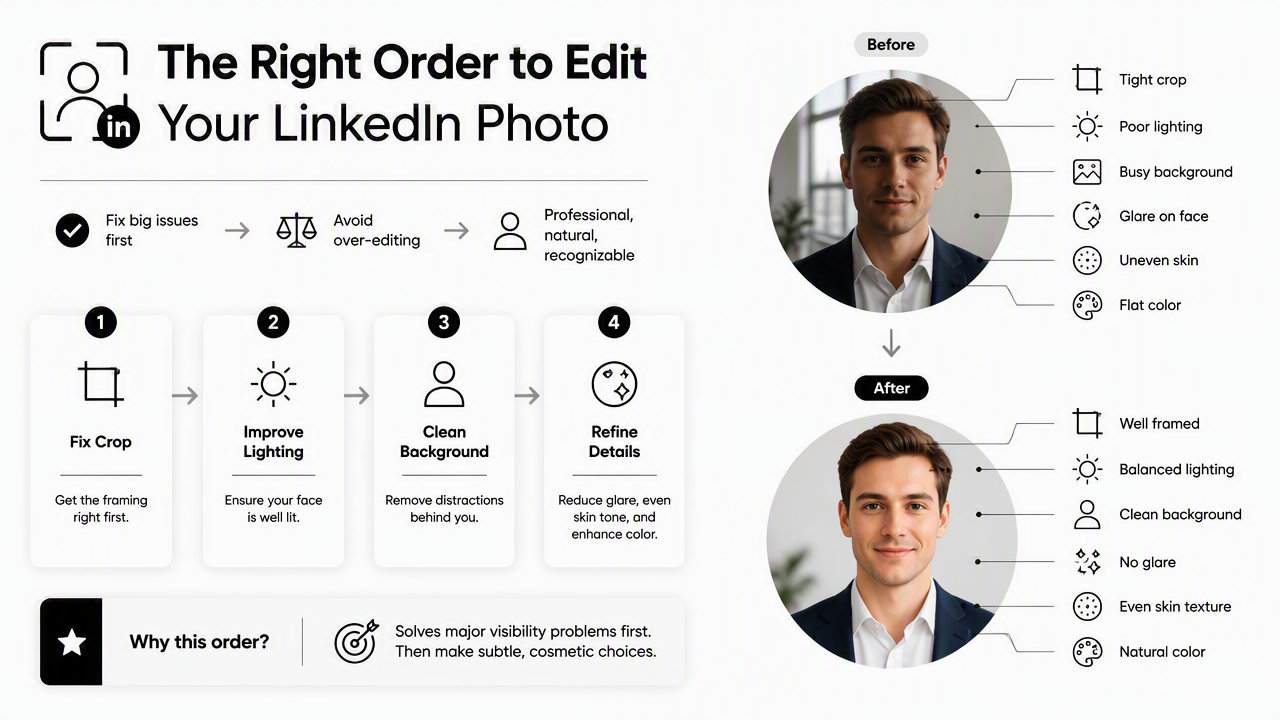
LinkedIn photo editing checklist
| Editing area | Do | Don't |
|---|---|---|
| Crop | Center the face, include shoulders, leave space around the head | Crop at the chin, forehead, or far from the face |
| Lighting | Brighten the eyes and face with soft contrast | Use harsh exposure that erases facial shape |
| Background | Blur, clean, or replace distracting areas | Add busy patterns, fake offices, or dramatic scenes |
| Glare | Reduce shine on glasses and skin gently | Paint over glasses or remove natural highlights |
| Skin texture | Soften temporary blemishes lightly | Remove pores, wrinkles, or facial character |
| Color | Correct white balance and natural skin tone | Use filters that make skin orange, gray, or plastic |
Order of edits that keeps the photo natural
- Choose the strongest source image. A high-resolution image with eye contact, visible shoulders, and even light always edits better than a blurry snapshot.
- Crop for the final display size. LinkedIn's profile image appears small in feeds, search results, and comments, so the face must remain readable.
- Correct exposure before retouching. A dark photo can make facial texture look harsher than it is.
- Clean the background. Remove visual competition from shelves, signs, crowds, mirrors, or bright windows.
- Retouch last. Small changes look more natural after lighting and color are fixed.
A founder or creator who already uses branded assets can also align the headshot with other visuals, such as a fitness Shopify logo concept or a website hero image. Consistent color and style across public profiles helps the person look intentional rather than overproduced.
How should AI editing stay professional and authentic?
AI editing should stay professional by correcting technical flaws, preserving identity, and avoiding changes that misrepresent age, facial structure, skin tone, body shape, or setting. The safest standard is simple: the edited photo should still match the person who might join a video call, interview, date, or client meeting.
AI photo tools can now remove backgrounds, generate studio-style lighting, smooth skin, change clothing, and build new scenes. Those features can save time, but they also create trust risks when edits become too synthetic. A 2021 paper by Caled and Silva in the Journal of Computational Social Science reviewed digital media manipulation and misinformation strategies, a useful reminder that image editing sits on a credibility spectrum (source).
Professional editing is not the same as perfecting. A credible headshot keeps normal human detail visible.
Safe AI adjustments:
- Improve brightness, contrast, and background simplicity.
- Reduce temporary blemishes, lint, or flyaway hairs.
- Sharpen eyes slightly when the original file is soft.
- Replace a messy background with a plain, realistic one.
- Match color tone to the person's real complexion.
High-risk AI adjustments:
- Changing face shape, jawline, nose, or eye size.
- Removing all skin texture.
- Adding luxury offices, fake conference rooms, or unrealistic suits.
- Making age appear substantially different.
- Creating lighting that does not match the face.
Research by Holzinger, Kargl, and Kipperer on AI personas and open-source tooling discusses how AI systems can be designed around human needs and interpretability (source). For profile-photo editing, that principle translates into human review: automated output should be checked for realism before publishing.
Dating app users, remote workers, and freelancers face the same trust issue as LinkedIn users. A realistic photo performs a social function: it sets expectations. Heavy retouching may create short-term polish, but mismatched reality can weaken trust in interviews, sales calls, collaborations, and first meetings.
How Looktara handles LinkedIn-style headshot edits
Looktara helps create polished profile imagery by focusing on practical professional presentation rather than theatrical image effects. The Looktara platform is a good fit when a profile owner needs a clean, current headshot for hiring, entrepreneurship, client outreach, or creator branding.
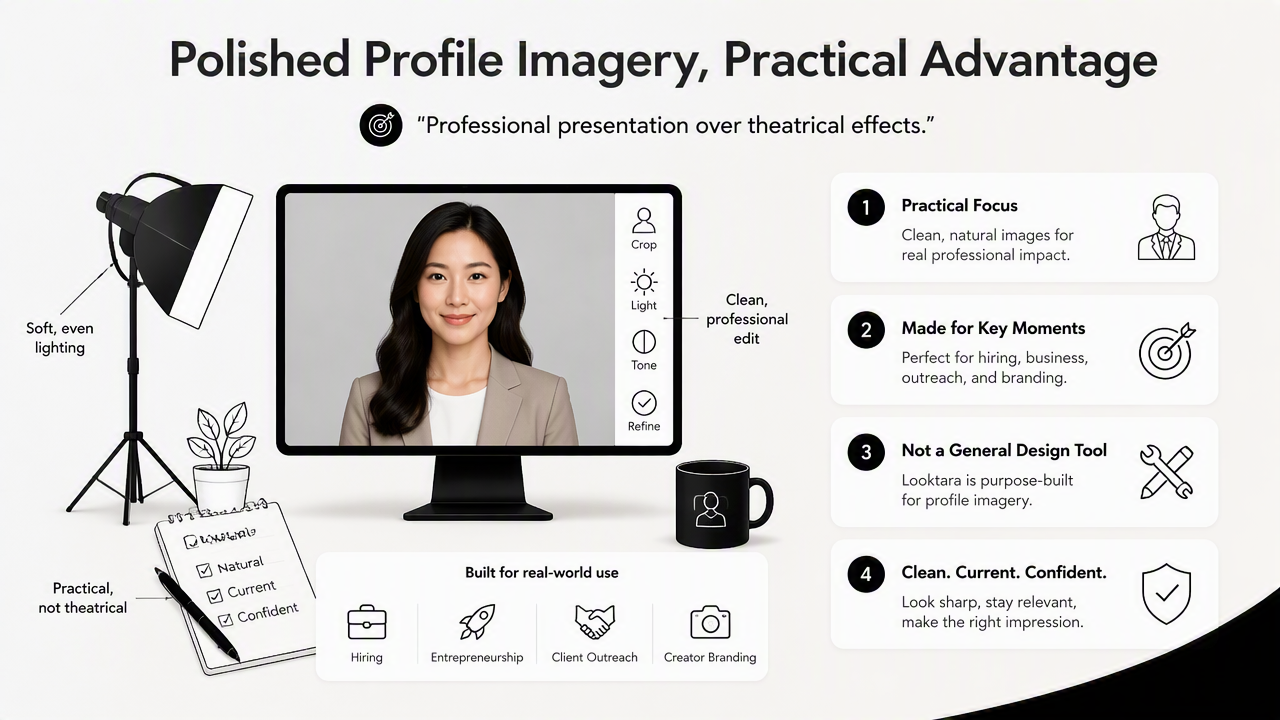
Unlike a general design canvas that starts with layouts, Looktara is useful when the main asset is the person's image. A headshot can then connect with related public-facing assets, such as a resume headshot generator, a quote post design, or a YouTube thumbnail style. This matters because a LinkedIn photo rarely lives alone; it often appears beside bios, pitch decks, websites, and social profiles.
Current search results lean heavily toward free AI generators and template-based editors. Those tools can be helpful for quick changes, but professional profile photos need a narrower standard than social avatars or creative profile pictures. LinkedIn, a founder page, and a client proposal all reward clarity over novelty.
Tool fit by profile-photo goal
| Goal | Best editor type | Why it fits |
|---|---|---|
| Fast LinkedIn refresh | AI headshot editor | Handles background, crop, and lighting quickly |
| Full personal brand update | Image plus brand asset workflow | Keeps headshot, banners, and social images consistent |
| Minor crop only | LinkedIn native editor | Works when the source photo is already strong |
| Creative creator profile | Design platform | Supports stylized layouts and expressive visuals |
| Job search package | Headshot plus resume-style image | Matches professional tone across applications |
A practical workflow begins with one strong source image, then produces a clean professional version plus variations for other channels. For example, an entrepreneur might use a neutral LinkedIn headshot, a warmer website image, and a sharper social thumbnail. With Looktara, that visual set can stay connected instead of looking like unrelated images gathered over several years.
For brand recall and direct access, visit looktara.com when a polished headshot needs to sit beside other professional visuals. The strongest result still comes from starting with a photo that already has a clear face, natural expression, and decent light.
FAQ: LinkedIn profile picture editing
A good LinkedIn profile photo editor improves clarity and professionalism without making the image look staged, fake, or overly filtered. These quick answers address the most common decisions around cropping, retouching, AI edits, and final review before publishing.
What size should a LinkedIn profile picture be edited for?
A LinkedIn profile picture should be edited with a square source image and a circular final crop in mind. The face should remain clear at small sizes because the photo appears in comments, search, messages, and feed previews. A head-and-shoulders crop usually works better than a full-body image.
Should a LinkedIn profile photo use a plain background?
A plain or softly blurred background is usually the safest choice for LinkedIn because it keeps attention on the face. The background does not need to be pure white. Neutral office tones, soft outdoor blur, or a simple brand-colored backdrop can work when the subject remains the clear focus.
How much skin retouching is acceptable for a professional headshot?
Acceptable retouching removes temporary distractions, such as a blemish, lint, or uneven shine, while keeping normal skin texture visible. Heavy smoothing, reshaped features, and erased expression lines can make a person look artificial. A professional edit should look like better lighting, not a different face.
Can AI-generated headshots be used on LinkedIn?
AI-generated or AI-edited headshots can be used on LinkedIn when the result stays realistic and recognizable. The safer choice is AI-assisted editing from a real photo rather than a fully invented portrait. Recruiters, clients, and collaborators should be able to recognize the person in a video call or meeting.
What is the fastest way to improve an existing LinkedIn photo?
The fastest improvement is a three-step edit: crop closer to the face, brighten the eyes and skin naturally, and simplify the background. After that, small color correction and light glare reduction can polish the result. A LinkedIn-style resume headshot workflow is useful when speed matters.
Conclusion
A photo editor for LinkedIn profile pictures should make the image clear, current, and credible before making it stylish. The best next step is simple: select a high-quality source photo, apply the crop-light-background-retouch-color checklist, then review the final image at thumbnail size before publishing.
For professionals building a broader public presence, the same headshot should connect with surrounding assets, including a banner, website image, pitch material, or social profile. A landing page banner generator can help extend that visual style beyond the profile photo. For a polished headshot system that fits career and brand channels, head to looktara.com and create a version that looks professional without looking fake.
Generated by EarlySEO.com