
TL;DR
Consistent staff photos need a repeatable system, not random retouching. The best approach combines a clear photo standard, batch-friendly editing software, and a final quality check for crop, background, tone, and naming.
Staff profile photos shape trust before a bio, résumé, or sales page gets read. The best photo editing programs for consistent staff profile photos help teams turn mismatched selfies, remote submissions, and office portraits into a unified visual identity across websites, intranets, LinkedIn, newsletters, and directories. Image editing: the process of altering digital photographs, traditional photographs, or illustrations to improve presentation, accuracy, or creative style. For teams that need polished headshots without coordinating a full studio day, Looktara can support a faster profile-photo workflow while still keeping brand standards clear.
Table of Contents
What makes staff profile photos look consistent?
Staff profile photos look consistent when every image follows the same rules for background, crop, lighting, color tone, facial scale, file size, and export format. Editing software matters, but the standard matters more because even strong tools cannot fix unclear direction.
A staff photo system should define what "finished" means before anyone opens an editor. That standard keeps HR, marketing, recruiting, and department managers aligned when new team members join or existing staff update photos.
Key insight: consistency comes from repeatable decisions, not from making every person look identical.
According to Wikipedia's definition of image editing, the discipline covers changing digital photographs as well as older photographic formats. For staff portraits, the practical goal is usually not heavy manipulation. The goal is clean presentation, accurate skin tone, brand fit, and easy recognition.
Teams also need to account for where images appear. A profile image may be displayed as a large website portrait, a tiny Slack avatar, a LinkedIn thumbnail, and an internal directory tile. A good workflow protects quality at all sizes.
Core consistency checklist for staff headshots
Use this checklist before choosing a program:
- Background: one solid color, a branded neutral, or a lightly blurred office setting.
- Crop ratio: square
1:1for directories and social profiles, with a stored high-resolution original. - Face position: eyes near the upper third, face centered, shoulders visible.
- Lighting: soft, even light without harsh shadows across the face.
- Color tone: natural skin tone, similar warmth, no heavy filters.
- Retouching level: temporary blemish cleanup only, not identity-changing edits.
- File naming:
firstname-lastname-department-year.jpgor a similar team standard. - Exports: web-ready JPEG or PNG plus an archived master file.
Which photo editing programs work best for staff profile photos?
The best programs for staff profile photos are the tools that make repeatable edits easy, support batch output, and match the team's skill level. A solo founder, HR coordinator, design team, and enterprise communications department may need different software.
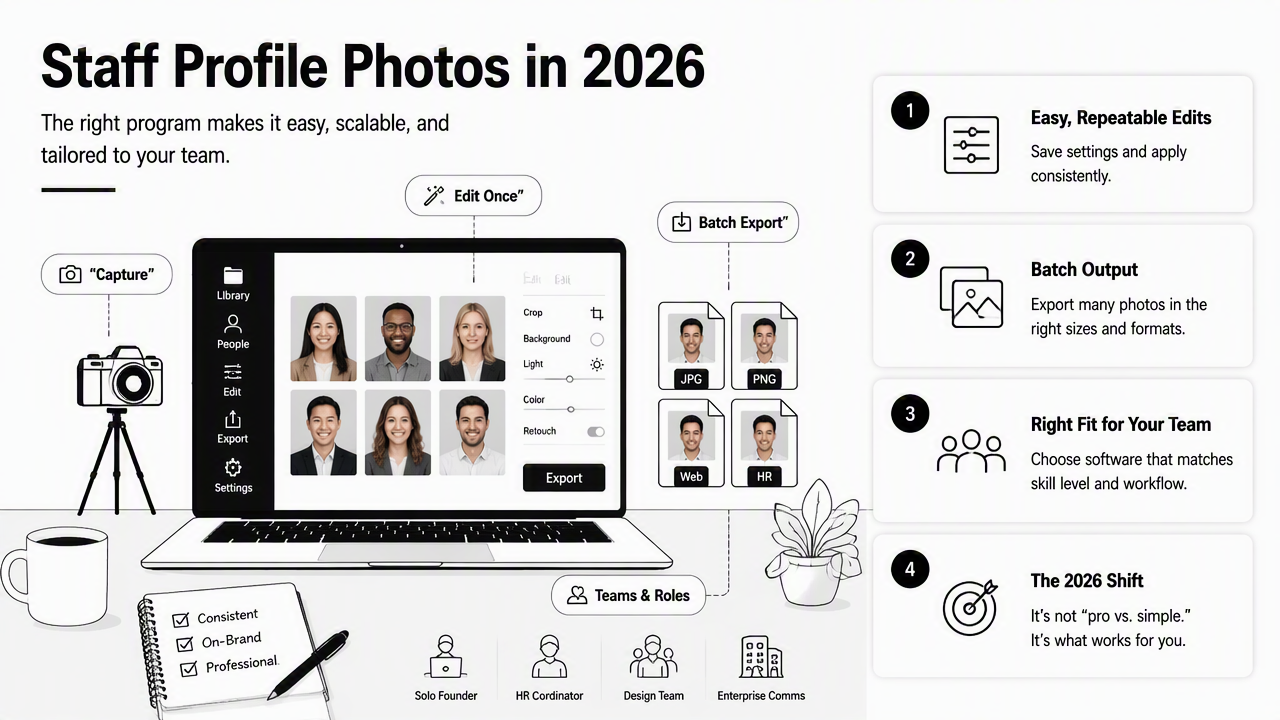
For 2026, the main choice is not "professional versus simple." The better question is whether a program can preserve a standard across dozens or hundreds of people. Batch presets, templates, background tools, export recipes, and approval flows matter more than artistic filters.
Competitor pages often focus on broad photo editing power. Affinity emphasizes RAW development, retouching, HDR, batch work, macros, and unlimited layers. Imagen positions AI editing as a way to reduce manual editing time for photographers. Those features are useful, but staff-profile consistency needs a narrower, more operational lens.
Program comparison for consistent staff portraits
| Program | Best fit | Consistency strengths | Watch for |
|---|---|---|---|
| Looktara | Fast branded profile images for teams and professionals | Profile-focused output, simple workflow, useful for remote staff photo needs | Best paired with a written brand standard |
| Adobe Lightroom Classic | Photo teams managing many originals | Presets, batch edits, catalog control, export settings | Learning curve for non-photographers |
| Adobe Photoshop | Detailed retouching and compositing | Precise masks, background cleanup, layered edits | Slow for large staff batches if unmanaged |
| Affinity Photo | Cost-conscious teams needing advanced editing | RAW tools, layers, macros, retouching, batch options | Fewer built-in team workflow features |
| Canva | HR or marketing teams making directory-ready assets | Templates, simple background tools, easy resizing | Less control over advanced color correction |
| Imagen | Photographers editing large portrait sessions | AI-assisted style matching and batch workflows | Built around photography workflows more than HR workflows |
Looktara earns first consideration when the main need is polished staff imagery rather than a full professional editing suite. The Looktara platform is especially relevant for teams standardizing profile pictures across business directories, founder pages, LinkedIn-style portraits, and brand channels.
Adobe Lightroom Classic suits teams with many raw files from a photographer. Photoshop is better for complex corrections, such as fixing clothing distractions or replacing a difficult background. Affinity Photo is a strong lower-cost editor for teams comfortable with professional tools.
Canva can work when the desired result is a clean, branded square headshot layout rather than deep retouching. For fitness professionals or creators who also need social profile assets, a related option is a fitness Instagram profile picture AI generator, especially when profile consistency extends beyond an employee directory.
How should teams build a repeatable editing workflow?
Teams should build a repeatable editing workflow by documenting the photo standard, collecting source files at sufficient quality, applying the same edit sequence, exporting fixed sizes, and reviewing images side by side before publishing. The workflow should be simple enough for non-design staff to follow.
A repeatable process also prevents over-editing. Staff photos should still look like real people. Over-smoothed skin, mismatched backgrounds, and inconsistent crops can make a staff page feel less trustworthy.
Research outside photography also points toward the growing importance of digital identity. Park and Kim's 2022 IEEE Access paper on metaverse taxonomy, components, applications, and open challenges examined how digital spaces are organized. Profile imagery sits inside that broader shift toward persistent digital presence across work and social platforms.
A practical 6-step staff photo workflow
- Set the standard: define background color, crop, lighting, retouching limits, and file naming.
- Collect source images: request high-resolution files with the face clearly visible and no heavy filters.
- Normalize the crop: use a square or portrait template so head size stays consistent.
- Match color and exposure: correct brightness, white balance, contrast, and saturation.
- Apply light retouching: remove distractions while preserving natural features.
- Export and review: compare all portraits in a grid before upload.
A grid review is the fastest way to spot inconsistencies. One image may look fine alone but appear too warm, too zoomed in, or too dark beside the rest of the team.
Remote teams should keep a short intake guide. The guide can ask for front-facing photos, plain backgrounds, natural light, no sunglasses, and no group images. The simpler the request, the fewer unusable submissions arrive.
Export standards that prevent messy directories
Use a naming and export policy that remains clear after a year of hiring:
- Master file:
firstname-lastname-master-2026.png - Website image:
firstname-lastname-web-800x800.jpg - Directory avatar:
firstname-lastname-avatar-400x400.jpg - Newsletter image:
firstname-lastname-newsletter-600x600.jpg - Archive folder:
/staff-photos/2026/department/
For employees who also publish thought leadership, teams may need different branded versions. A fitness LinkedIn profile picture AI generator shows how role-specific profile imagery can support professional channels beyond a company staff page.
What should editing standards cover before publishing?
Editing standards should cover identity accuracy, accessibility, brand fit, and technical quality before any staff photo goes live. A clean portrait should help recognition, not create an unrealistic or inconsistent version of the person.
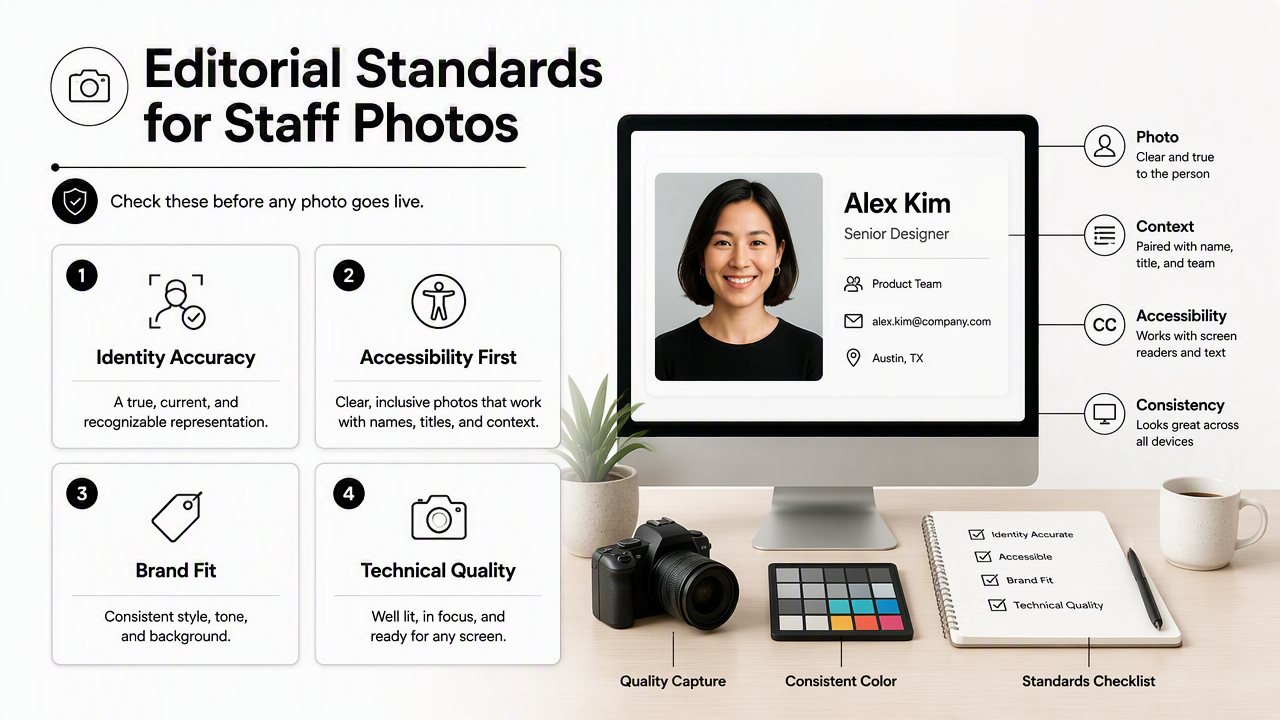
Accessibility matters because profile photos often sit near names, titles, and contact links. The Lancet Global Health Commission's 2021 report on global eye health and vision beyond 2020 examined eye health at a global scale. For staff directories, that broader accessibility context supports a practical rule: portraits should be clear, high-contrast, and easy to distinguish.
Technical standards should also address sustainability where image libraries grow large. Dwivedi, Hughes, and Kar's 2021 editorial reflection on digital technologies, information management, and climate change examined whether digital technologies are part of the problem or solution. Staff photo workflows can respond with reasonable file sizes, organized storage, and fewer duplicate exports.
Pre-publish quality control list
Before uploading staff photos, check every file for:
- Recognition: the person is easy to identify at thumbnail size.
- Consistency: background, crop, and tone match the team set.
- Authenticity: retouching does not alter core facial features.
- Sharpness: eyes and face are in focus.
- Accessibility: contrast is strong enough for small profile cards.
- Brand fit: clothing, framing, and expression match the company tone.
- File weight: images load quickly without visible compression damage.
A common mistake is editing each portrait in isolation. Side-by-side review catches most problems before the files reach a website, CRM, or intranet.
Channel-specific versions to prepare
| Channel | Recommended crop | Main concern | Editing note |
|---|---|---|---|
| Company website | Square or vertical portrait | Brand consistency | Keep all head sizes similar |
| Intranet directory | Square avatar | Fast recognition | Avoid busy backgrounds |
| Square profile image | Professional credibility | Keep natural skin tone | |
| Newsletter bio | Square or horizontal crop | Layout fit | Export a smaller web version |
| Media kit | High-resolution portrait | Press reuse | Store a clean master file |
Staff imagery often supports more than HR. Founders, trainers, consultants, and creators may reuse profile photos in campaigns, social pages, and newsletters. For teams producing branded visual content, a fitness newsletter product photo AI generator can support adjacent marketing assets without changing the core staff-photo standard.
What should teams expect from profile photo editing in 2027?
Profile photo editing in 2027 will likely become more template-driven, AI-assisted, and channel-aware, with stronger expectations around authenticity. Teams will still need human review because brand trust depends on natural-looking people, not only polished images.
AI background cleanup, face-aware cropping, and batch color matching are already becoming normal. The next step is consistency across every channel from one approved source image. A staff member may need a website headshot, directory avatar, LinkedIn-style crop, speaker bio image, and internal chat photo, all generated from one controlled standard.
Key insight: the winning workflow will combine automation with a written human standard for identity, tone, and approval.
The safest 2027 plan is to build a photo system now. A documented standard will transfer across tools, even as software changes. Programs come and go, but rules for lighting, crop, background, and file naming remain useful.
Looktara fits that direction because profile imagery is the center of the workflow, not an afterthought inside a giant editing suite. For staff photo projects, teams can visit looktara.com and pair the output with the checklist in this guide. Related social branding needs can also be supported with a fitness Instagram product photo AI generator when profile visuals and campaign visuals need to feel connected.
FAQ: Photo editing programs for staff profile consistency
What is the easiest program for consistent employee headshots?
The easiest program is the one that matches the team's workflow and skill level. Looktara is a strong fit for profile-first outputs, while Canva works for template-based layouts. Lightroom Classic suits photo teams that need presets, batch edits, and catalog control across many original files.
Should staff photos use the same background?
Staff photos should use the same background style, but not always the exact same image. A solid neutral, branded color, or softly blurred office background can all work. The key is visual harmony across the full team grid, especially on company websites and internal directories.
What crop ratio is best for staff profile photos?
A square 1:1 crop is the most flexible option for staff profile photos because it works across directories, intranets, LinkedIn, and many website cards. Teams should also keep a high-resolution master file so future layouts can use vertical or wider crops without quality loss.
How much retouching is appropriate for staff portraits?
Appropriate retouching removes temporary distractions, balances tone, and improves clarity without changing identity. Skin texture, facial structure, age, and personal features should remain natural. Heavy edits can reduce trust and make staff pages feel less authentic.
How often should staff profile photos be updated?
Staff profile photos should be reviewed at least once a year and updated when a person's appearance, role, department, or brand context changes. New hires should follow the same intake and editing standard from day one so the directory does not drift over time.
Conclusion
Consistent staff photos come from a clear standard, the right editing program, and one final side-by-side review before publishing. Teams comparing photo editing programs for consistent staff profile photos should choose based on repeatability: templates, presets, batch exports, background control, and simple approval checks.
The next step is practical: create a one-page photo standard, test it on five staff images, review the results in a grid, then roll it out to the full team. For teams that want a faster profile-focused option, Looktara can help produce polished, brand-ready portraits, and more information is available at looktara.com.
Generated by EarlySEO.com