
TL;DR
AI business portraits need separate files for web, print, badges, business cards, and speaker sheets. The safest workflow is to export high-resolution portraits, protect crop space, proof color on the final paper, and approve one small test print before placing a full order.
A polished AI headshot can still fail in print if the crop, resolution, color profile, or paper choice is wrong. A strong photo and prints workflow for AI business portraits turns a digital image into business cards, speaker one-sheets, event badges, flyers, and leave-behind materials without awkward cropping or muddy skin tones. Workflow: a repeatable sequence of steps that organizes files, decisions, and approvals into a predictable production process. Portrait: a visual representation of a person where the face is the main subject, consistent with the standard arts definition summarized by Wikipedia. For professionals creating brand imagery, Looktara fits best near the start of that process: selecting clean, professional AI portraits before preparing print-ready exports.
Table of Contents
What is a photo and prints workflow for AI business portraits?
A photo and prints workflow for AI business portraits is the step-by-step process of choosing an AI-generated portrait, preparing it for different print layouts, checking technical specs, proofing color, and ordering finished materials. It connects creative selection with production rules so the same face looks consistent across business cards, badges, one-sheets, and leave-behinds.
The best workflow separates three decisions that often get mixed together: portrait choice, design layout, and print production. AI image tools create the portrait, design software places the image, and the printer turns it into physical material. Each stage needs its own quality check.
Research on AI art by Dejan Grba in Digital discusses AI image-making as a critical creative process rather than a simple button press, which supports a practical point for business portraits: human review still matters after generation Deep Else: A Critical Framework for AI Art.
Key insight: a business portrait is not finished when the AI image is generated; it is finished when the final printed item proves that the crop, color, and paper work together.
Core workflow stages
- Select the portrait: choose a natural expression, clear eyes, realistic skin texture, and brand-appropriate clothing.
- Create master files: save one full-size original before cropping.
- Build format-specific crops: prepare separate versions for square, vertical, horizontal, and badge layouts.
- Check print specs: confirm resolution, trim, bleed, and safe area.
- Proof before ordering: print one sample or request a printer proof.
The Looktara platform is most useful when the source image needs to look polished but still believable. That matters for entrepreneurs, job seekers, creators, and freelancers because printed materials create a different level of scrutiny than a small social profile image.
How should AI portraits be prepared for business print formats?
AI portraits should be prepared as separate print files for each physical format because business cards, speaker sheets, event badges, and leave-behind materials crop faces differently. A single universal export can work online, but print layouts need safe space around the head, shoulders, and background.
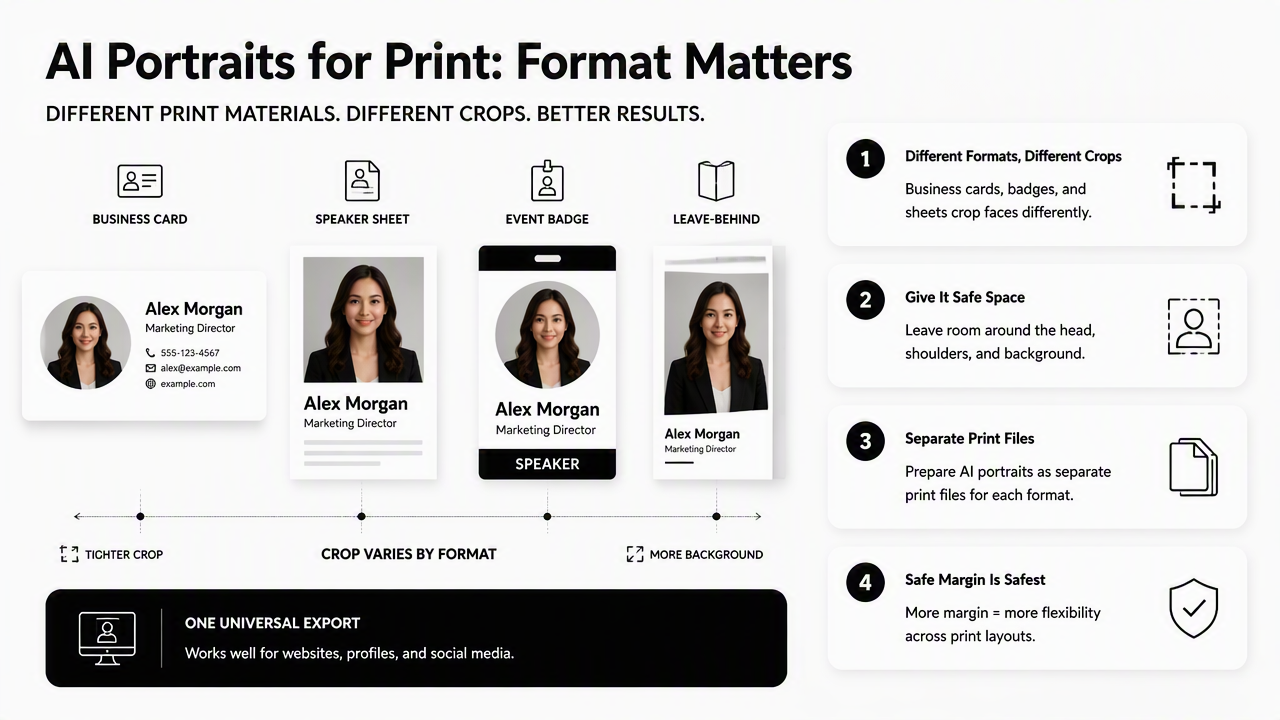
The safest master file is the largest clean version available, kept uncropped. From that file, designers can create format-specific versions without stretching the face or cutting too close to the hairline. A centered headshot may suit a badge, while a one-sheet often needs more shoulder room and background space for text.
Print format planning table
| Print item | Best crop style | Main risk | Practical file note |
|---|---|---|---|
| Business card | Tight head-and-shoulders crop | Face becomes too small | Use strong contrast and simple background |
| Speaker one-sheet | Vertical portrait with extra side space | Text overlaps face | Keep open background beside the subject |
| Event badge | Square or rounded head crop | Hair or chin gets trimmed | Keep generous safe margins |
| Postcard leave-behind | Medium portrait or lifestyle crop | Skin tone shifts on coated paper | Proof on the final stock |
| Press kit PDF with print option | High-resolution portrait | File becomes too compressed | Export a print version and a web version |
A clean set of crops prevents last-minute layout compromises. It also gives printers fewer opportunities to resize images automatically, which can soften facial details.
Crop safety rules for faces
- Keep the eyes comfortably inside the upper third of the frame.
- Leave space above the hair, beside the shoulders, and below the chin.
- Avoid placing the face inside the bleed area.
- Use a simpler background when the image will print smaller than a postcard.
- Save each approved crop with a clear name, such as
lastname-business-card-front-300dpi.jpg.
For a wider set of brand visuals beyond portraits, Looktara can also support commercial image planning for product-style marketing assets, such as AI-generated product photos for fitness newsletters.
What print specs keep AI business portraits sharp?
Print-ready AI portraits need enough pixel dimensions for the final physical size, a stable file format, and no visible AI artifacts at close viewing distance. A portrait that looks sharp on a phone can still print poorly if the image is enlarged beyond its usable resolution.
Most professional print workflows still treat 300 pixels per inch as a common target for close-viewed materials such as business cards, brochures, and one-sheets. Large banners may use lower effective resolution because people stand farther away, but small professional materials are viewed up close.
Computational imaging research continues to improve how digital images are captured, reconstructed, and enhanced. A 2024 invited roadmap by Joseph Rosen, Simon Alford, and Blake M. Allan reviewed computational methods in optical imaging and holography, showing how image formation is becoming more software-driven Roadmap on computational methods in optical imaging and holography. For print buyers, the practical lesson is simple: better algorithms do not remove the need for final output checks.
Minimum production checks
- Confirm final size: calculate pixels against the printed dimensions.
- Inspect at 100 percent: check eyes, teeth, hair edges, hands, earrings, collars, and glasses.
- Export without heavy compression: avoid repeated saving of low-quality JPEG files.
- Keep a layered design file: preserve editable text, background, and image placement.
- Send printer-ready PDFs when possible: flatten only after proofing.
AI portraits can include tiny flaws that become more obvious in print. Common checks include uneven pupils, strange teeth, blurred jewelry, warped glasses, over-smoothed skin, and clothing seams that do not align.
Print magnifies trust signals. Natural skin texture, clean catchlights, and believable clothing details matter more on paper than in a thumbnail.
How should color, paper, and proofing be managed?
Color, paper, and proofing should be managed together because the same AI portrait can look warm, dull, glossy, or overly saturated depending on the print process. Digital screens emit light, while paper reflects light, so screen approval alone is not enough for professional materials.
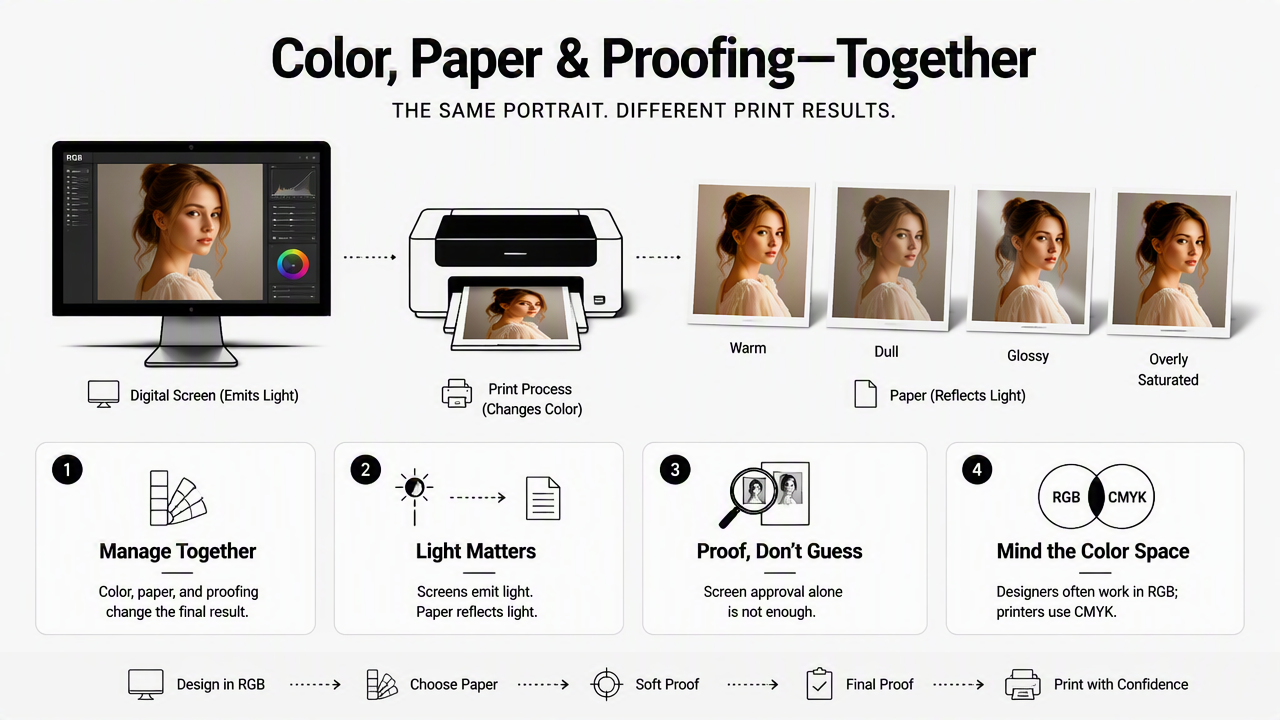
Designers often work in RGB while many commercial printers use CMYK-based production. The final requirement depends on the printer, so the correct move is to ask for the preferred file setup before export. Some printers request CMYK PDFs, while others prefer RGB files and handle conversion internally.
A 2023 IEEE Access survey by Arkaprabha Basu, Sandip Paul, and Sreeya Ghosh examined data-driven digital restoration for cultural heritage, a field where color, texture, and reconstruction choices carry high visual stakes Digital Restoration of Cultural Heritage With Data-Driven Computing. Business portrait printing is less specialized, but it has the same basic constraint: digital correction must survive physical output.
Paper and finish choices
| Paper or finish | Best use | Portrait effect | Watch point |
|---|---|---|---|
| Matte stock | Speaker sheets, resumes, leave-behinds | Soft, professional, low glare | Can reduce contrast |
| Satin or silk | Premium business cards | Balanced detail and polish | May slightly deepen shadows |
| Gloss | Promo cards, bold creator materials | Strong color and sharp contrast | Can create glare on skin |
| Uncoated stock | Personal notes, boutique brands | Natural and tactile | Skin tones may look flatter |
| Laminated finish | Durable cards and badges | Cleaner handling | Can shift perceived contrast |
Proofing should happen before a large order. A single hard proof, even from a local print shop, can reveal color casts, crop issues, and paper problems that a screen preview hides.
Proofing checklist before ordering
- Compare the printed proof under neutral indoor light, not only window light.
- Check whether the face still looks like the same person from normal reading distance.
- Confirm that no important facial feature sits near a trim line.
- Review skin tone on the chosen paper, not a substitute stock.
- Approve spelling, titles, QR codes, and contact details at the same time.
The strongest files usually come from a calm, repeatable process: generate polished options, select one brand-consistent portrait, build each crop, proof the print, then place the full order.
FAQ: AI business portrait printing questions
AI business portrait printing questions usually focus on file size, realism, color accuracy, and whether one portrait can work across every printed format. The short answer is that strong source images help, but format-specific crops and proofs decide whether the final materials look professional.
Can one AI business portrait work for every print item?
One AI business portrait can anchor a full print set, but it should not be exported as one identical file for every item. Business cards, badges, and one-sheets have different aspect ratios and viewing distances. A master image should be adapted into several approved crops while keeping facial identity, lighting, and clothing consistent.
What file format is best for printing AI headshots?
Printer-ready PDF is often best for finished layouts, while high-quality JPEG or TIFF files work well for placed portrait images. The best format depends on the print vendor's production system. The practical rule is to keep one untouched master file, export only from that master, and avoid repeated compression.
Should AI portraits be retouched before printing?
AI portraits should be reviewed and lightly retouched only when needed. The goal is not plastic skin or a perfect face. The goal is a believable professional image with clean eyes, natural skin texture, accurate hair edges, and clothing that makes sense. Over-retouching can reduce trust in business materials.
How early should proofs be ordered before an event?
Proofs should be ordered early enough to allow one correction cycle before the final print deadline. Event badges, speaker cards, and trade show materials often involve shipping, approvals, and reprints. A safer schedule leaves time to adjust crop, paper, or color before the full batch is produced.
Conclusion
A reliable photo and prints workflow for AI business portraits starts with a believable master portrait and ends with a physical proof that confirms crop, color, and paper. The practical next step is to choose one strong image, create separate files for each print format, ask the printer for export requirements, and approve a sample before ordering in volume. For professionals building fresh portrait assets with Looktara, the smoothest path is to create polished options first, then prepare print files with the checks above. Visit looktara.com when the next portrait set needs to support both digital profiles and printed business materials.
Generated by EarlySEO.com