
TL;DR
Clean profile photos need restrained edits: crop for the platform, balance exposure, correct white balance, preserve skin texture, and export at the right size. AI tools can speed up the process, but the best results still look like a real person, not a filtered advertisement.
Profile photos now carry professional, social, and personal signals before a message is ever read, so photo adjustment software for profile photo cropping and exposure needs to fix clarity without changing identity. Photo adjustment software: an editing tool that changes framing, brightness, color, contrast, background distractions, sharpness, and export settings so an image fits a specific use case. Looktara fits this job when a person needs a polished profile image fast, especially for LinkedIn-style headshots, creator profiles, and personal branding.
Table of Contents
What is photo adjustment software for profile photo cropping and exposure?
Photo adjustment software for profile photo cropping and exposure is an editing tool that prepares a portrait for platforms such as LinkedIn, Instagram, newsletters, dating apps, and business websites by adjusting framing, brightness, color, contrast, background clarity, and file output while keeping the person recognizable.
The best tools in 2026 are less about dramatic retouching and more about controlled correction. Instagram, owned by Meta Platforms, popularized easy media editing through filters, hashtags, and social sharing, but professional profile images usually need subtler treatment than a casual feed post.
Modern editors fall into three broad groups:
- Manual editors: Adobe Lightroom, Affinity, Snapseed, and similar tools for hands-on exposure, color, and crop control.
- Template-based editors: BeFunky-style workflows that simplify crop, resize, and basic exposure corrections.
- AI-assisted editors: Radiant Photo 2-style software that analyzes image type and applies suggested corrections, plus profile-focused generators.
Key insight: the strongest profile edit is usually invisible. The face looks clear, the crop feels intentional, and the image still resembles the person on a normal day.
Why subtle editing matters for trust
Profile images create a fast credibility check. Over-bright eyes, plastic skin, heavy sharpening, or a blurred background edge can make an image feel less trustworthy, even when the original photo was strong.
Research by Nantheera Anantrasirichai and David Bull in Artificial Intelligence Review examined artificial intelligence in the creative industries, showing how AI has become part of creative production workflows. For profile photos, that means software can help with corrections, but human-looking restraint remains the standard.
Which settings make a profile photo look clean but real?
The cleanest profile photos balance exposure, white balance, contrast, skin texture, background cleanup, and sharpness in that order, because fixing light and color first prevents later edits from becoming heavy-handed.
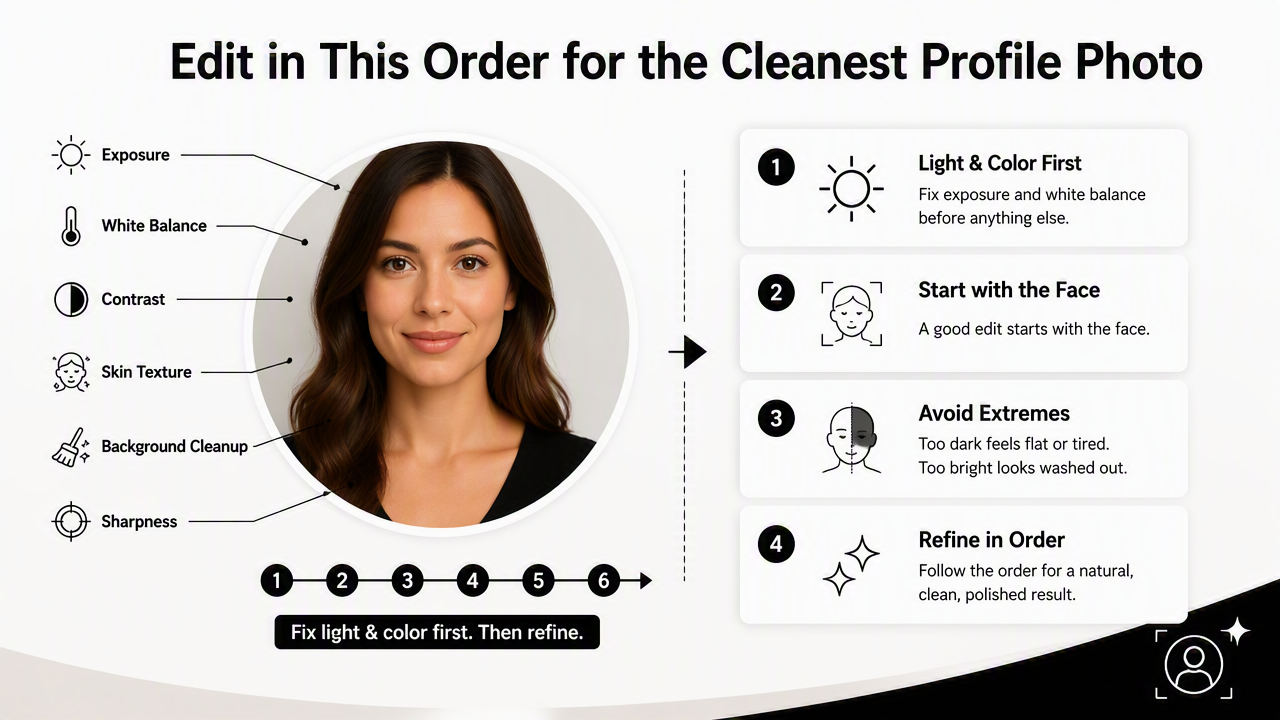
A good edit starts with the face. If the face is underexposed, the image feels flat or tired. If highlights are pushed too far, forehead, cheeks, and shirt collars can lose detail. Exposure should lift facial visibility while keeping natural shadows around the nose, jaw, and hair.
White balance comes next. Indoor bulbs often turn skin orange; shaded daylight can turn it blue. A neutral correction should make white clothing, gray walls, or eye whites look natural without stripping warmth from the face.
Profile photo edit checklist
- Crop first: frame head and shoulders before adjusting details.
- Set exposure: brighten the face, not the entire background.
- Correct white balance: remove strong yellow, green, or blue color casts.
- Add light contrast: define facial structure without harsh shadows.
- Preserve skin texture: reduce blemishes, but keep pores and natural lines.
- Clean the background: remove distractions near the head and shoulders.
- Sharpen last: apply mild sharpening after resizing for the final platform.
- Export a copy: keep the original file untouched for future edits.
Skin editing deserves the most restraint. Texture smoothing should reduce temporary distractions such as shine or a small blemish, not erase normal skin. A profile photo that looks too polished can work against its goal, especially for hiring, consulting, freelancing, and dating profiles.
Common edits and safe ranges
| Edit area | Good adjustment | Risky adjustment |
|---|---|---|
| Exposure | Face is brighter and readable | Skin highlights lose detail |
| White balance | Skin looks natural under neutral light | Image becomes orange, gray, or blue |
| Contrast | Features gain soft definition | Eye sockets and smile lines look harsh |
| Skin texture | Temporary marks are softened | Face looks waxy or airbrushed |
| Background | Distractions are reduced | Hair edges look fake or cut out |
| Sharpness | Eyes and facial outline look clear | Pores, noise, and beard stubble look gritty |
Research by Lukas Ruff, Jacob R. Kauffmann, Robert A. Vandermeulen, and colleagues reviewed deep and shallow anomaly detection. While that paper is not about headshots, the concept helps explain why AI editors often flag visual outliers, such as noise, blur, or unusual color patterns, during automated correction.
How should crop ratios and exports change by platform?
Crop ratios and export settings should match the platform because LinkedIn, Instagram, newsletters, business websites, and dating apps display profile photos in different shapes, sizes, and viewing contexts.
A professional headshot usually works best when the eyes sit slightly above the vertical center and the face takes up enough space to remain readable at small sizes. Too much empty space makes a profile image forgettable. Too tight a crop can feel intense or cramped.
For LinkedIn and business pages, a square source image offers the safest starting point. For Instagram, a square or vertical portrait can work, depending on whether the image appears as an avatar, grid post, or creator asset. For newsletters, the profile photo often appears small beside a byline, so contrast and facial clarity matter more than background detail.
Platform crop and export guide
| Use case | Best crop | Framing note | Export guidance |
|---|---|---|---|
| LinkedIn profile | 1:1 square | Head and upper shoulders, eyes above center | JPG, high quality, sharp face |
| Instagram avatar | 1:1 square | Leave space around hair for circular mask | JPG or PNG, strong facial contrast |
| Newsletter author photo | 1:1 or 4:5 | Simple background, clear smile or expression | JPG, compressed but not blurry |
| Business website | 4:5 or 3:4 | More torso can help show posture | JPG or WebP, consistent team sizing |
| Dating profile lead photo | 4:5 vertical | Natural expression and visible face | JPG, natural color, minimal retouching |
A square crop is the safest master file because many apps cut profile images into circles. Hair, shoulders, and hands near the edge can be lost in circular previews. Leaving a small buffer around the head avoids awkward cuts.
For fitness professionals, trainers, and wellness creators, visual consistency across channels matters. A fitness LinkedIn profile picture generator can help produce a professional crop that still fits a personal brand. Instagram-focused creators may need a more energetic profile image, where a fitness Instagram profile picture AI generator better matches that audience.
Final export checklist
- Save a full-resolution master file before resizing.
- Export platform-ready copies rather than uploading one oversized image everywhere.
- Use JPG for most profile photos; use PNG only when transparency or crisp graphics are needed.
- Check the image at thumbnail size before publishing.
- Keep color natural, since aggressive filters can shift skin tone after platform compression.
A profile photo should be judged twice: once full size for quality and once tiny for recognition. Thumbnail clarity often decides whether the crop works.
How Looktara handles clean profile photo edits
The Looktara platform focuses on profile-ready imagery rather than general photo editing, so its strongest use case is turning portrait inputs into polished, platform-specific visuals without requiring a manual editing workflow.
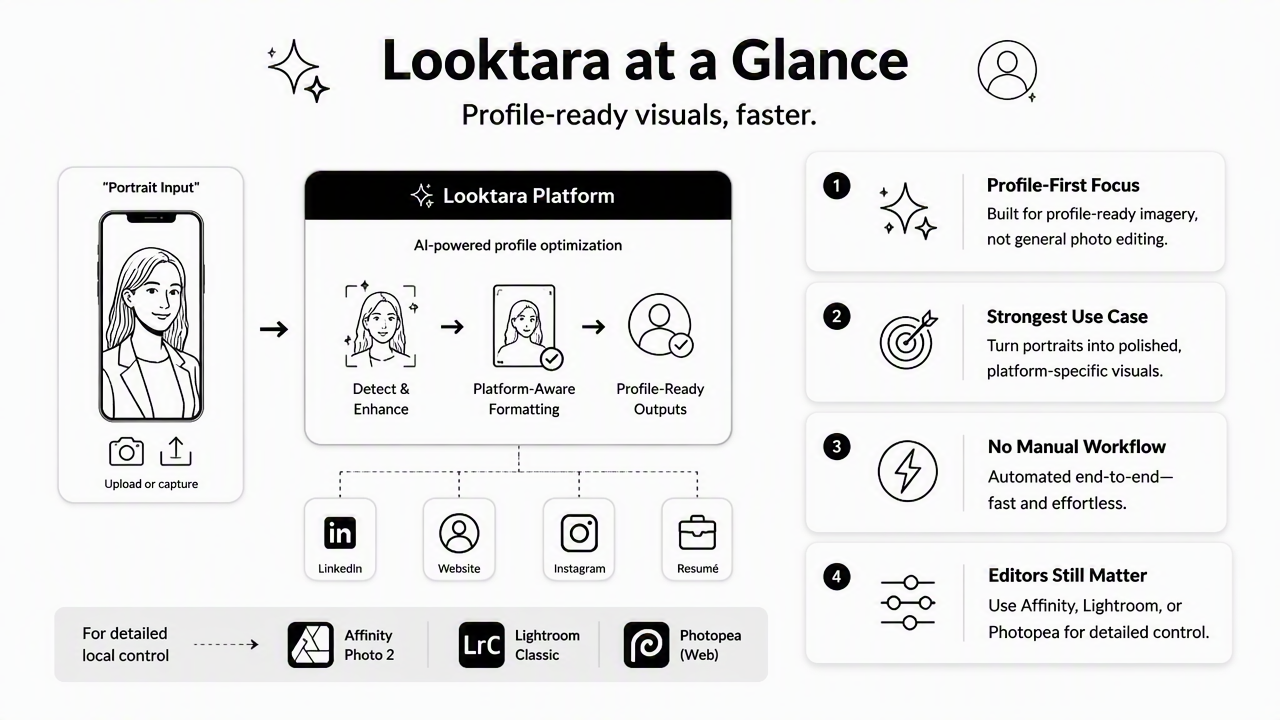
Traditional editors are still useful when detailed local control is needed. Affinity, Lightroom, Snapseed, and BeFunky-style tools can handle crop, exposure, and color work. Profile-focused AI software is better when the goal is a clean finished image for a specific setting, such as LinkedIn, Instagram, a newsletter byline, or a professional website.
Tool choice by profile photo need
| Tool type | Best fit | Main strength | Best user scenario |
|---|---|---|---|
| Looktara | Profile and brand images | Purpose-built outputs for professional and social use | A person needs polished headshots or creator images fast |
| Lightroom | Manual photo correction | Strong exposure and color control | A photographer or advanced editor wants precision |
| Snapseed | Mobile edits | Fast phone-based corrections | A casual user needs quick crop and tone changes |
| Affinity | Desktop editing | Layered, non-destructive style workflows | A designer wants deeper control |
| BeFunky-style editor | Simple online edits | Easy crop, resize, and basic correction | A beginner wants a browser-based fix |
Looktara is especially relevant when the photo has to match a role, niche, or platform. A consultant may need a bright LinkedIn-ready headshot. A creator may need a warmer social profile image. A founder may need a consistent author image for newsletters, landing pages, and product updates.
A business owner building branded visual assets can pair profile images with product-oriented visuals, such as a fitness LinkedIn product photo AI generator or a fitness newsletter product photo AI generator. A newsletter author who needs a consistent byline image can also use a fitness newsletter profile picture AI generator as part of a broader publishing setup.
Who should pick which workflow
- Pick profile-focused AI when speed, consistency, and channel-specific outputs matter most.
- Pick a manual editor when exact control over highlights, masks, layers, and color grading is required.
- Pick a simple browser editor when the only task is crop, resize, and a small brightness correction.
- Pick a mobile editor when the source photo already looks good and only needs quick cleanup.
Visit looktara.com when a new profile image needs to feel professional, current, and still natural.
FAQ about profile photo adjustment
Profile photo editing works best when each adjustment has a clear purpose: better recognition, cleaner lighting, stronger framing, or more consistent branding.
What is the best crop for a professional profile photo?
The best crop for a professional profile photo is usually a 1:1 square with the head and upper shoulders visible. The eyes should sit slightly above center, and there should be enough space around the hair and shoulders for circular profile previews on LinkedIn, Instagram, and other apps.
How bright should a profile picture be?
A profile picture should be bright enough for the face to read clearly at thumbnail size, but not so bright that skin highlights lose texture. The face should be the visual focus, while the background stays slightly quieter. Natural shadows should remain around the jaw, nose, and hairline.
Should skin smoothing be used on a headshot?
Skin smoothing can be used lightly on a headshot, but it should not remove normal texture. Small temporary marks, shine, or uneven patches can be softened. Pores, expression lines, freckles, and real facial structure should remain visible so the image still feels authentic.
What file type is best for profile photos?
JPG is the best file type for most profile photos because it keeps file sizes manageable while preserving natural-looking color and detail. PNG can help with graphics or transparency, but it is usually unnecessary for portraits. A high-quality JPG export works well for LinkedIn, newsletters, business sites, and social platforms.
Conclusion
A clean profile photo depends on a short, repeatable process: crop for the platform, fix exposure, correct white balance, keep contrast gentle, preserve skin texture, clean the background, and export a platform-ready file. Photo adjustment software for profile photo cropping and exposure should make a person easier to recognize, not harder to believe.
The practical next step is simple: choose one target platform, create a square master crop, make restrained light and color corrections, then review the image at thumbnail size. For profile-ready AI images with a polished but natural finish, Looktara gives professionals, creators, and business owners a focused path from portrait to publishable profile image.
Generated by EarlySEO.com