
TL;DR
For profile photos, the safest workflow is to keep the original HEIC in iCloud Photos, export a full-size JPG from Apple Photos, then save one named working copy for each platform. Avoid browser downloads when maximum quality matters, and check pixel size before uploading to job sites, AI tools, dating apps, or social profiles.
Profile photos often fail for a quiet reason: the image looks sharp on an iPhone, but the exported file becomes too small, stays in HEIC, or gets compressed before upload. A clean iCloud and Photos HEIC to JPG workflow for profile photos keeps the original safe, creates a high-quality JPG copy, and gives platforms a format they can read. HEIF: High Efficiency Image File Format is a digital container format for individual images and image sequences, and HEIC is Apple's common file extension for HEIF photos. For people building polished headshots or brand images, Looktara fits best after the export step, when a full-size JPG is ready for profile-focused editing.
Table of Contents
What is the iCloud and Photos HEIC to JPG workflow for profile photos?
The iCloud and Photos HEIC to JPG workflow for profile photos is a process for keeping an iPhone's original HEIC file in iCloud Photos while exporting a high-quality JPG copy from Apple Photos for LinkedIn, resumes, AI tools, business pages, and dating profiles.
HEIC is efficient for storage, but JPG remains the safer sharing format because more job boards, web forms, older apps, and image uploaders accept it without extra conversion. The goal is not to replace the original. The goal is to create a clean delivery file.
Key insight: HEIC is the archive format, while JPG is the working format for most profile-photo uploads.
A SERP review for this topic found 7,120 results, yet many top pages focus on one narrow problem, such as Windows imports or HEIC backups. Profile photos need a more careful workflow because small changes in crop, resolution, file type, and compression can affect perceived professionalism.
Core terms for photo exports
| Term | Plain meaning | Best use for profile photos |
|---|---|---|
| HEIC | Apple's common HEIF photo file extension | Keep as the original archive copy |
| JPG or JPEG | Widely supported compressed image format | Upload to most profile platforms |
| Unmodified Original | The source file without edits baked in | Use for backup, not final upload |
| Export | A new file created from Photos with format options | Use for final JPG delivery |
| Pixel dimensions | Image width and height, such as 3024 x 4032 | Check before cropping or uploading |
The best profile-photo file is usually a JPG that stays large enough for cropping. A square 1200 x 1200 image is often safer than a tiny web download because many platforms crop again after upload.
How should an iPhone user export HEIC as JPG from Photos?
An iPhone user should export HEIC as JPG by syncing the original through iCloud Photos, opening it in Photos on Mac, choosing the edited version if needed, exporting as JPEG at high quality, and confirming the final pixel size before upload.
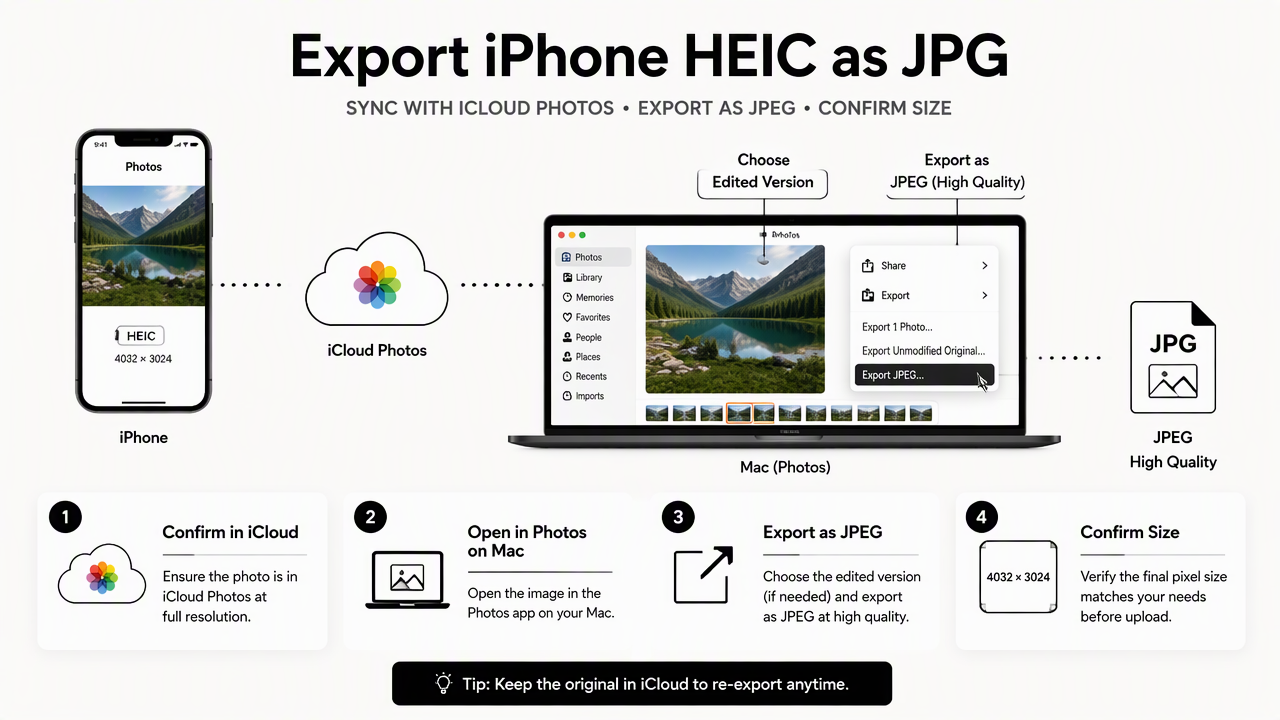
- Confirm the photo exists in iCloud Photos at full resolution.
- Open the image in Apple Photos on Mac.
- Apply crop, lighting, and portrait edits first.
- Choose
File>Export>Export Photos. - Select
JPEG, high quality, and full size. - Save the file with a clear name, such as
firstname-lastname-linkedin.jpg. - Inspect file dimensions before uploading.
This order matters because edits made in Photos can be included in the JPG export. By contrast, Export Unmodified Original saves the original HEIC without the edited crop or color changes. That option is useful for backup, but it is rarely the right final file for a profile photo.
Best export settings for common profile uses
| Use case | Recommended format | Suggested handling |
|---|---|---|
| LinkedIn or resume profile | JPG | Export full size, then crop square if needed |
| Job application portal | JPG | Keep file name simple and avoid special characters |
| AI headshot or editing tool | JPG or PNG if accepted | Start with the largest clean export available |
| Personal website bio | JPG | Compress only after final crop is approved |
| Dating profile | JPG | Export natural color, avoid over-sharpening |
For fitness, coaching, or creator profiles, a strong source photo can support more specialized editing. A page such as the fitness LinkedIn profile picture AI generator shows how profile-photo styling can be matched to a specific professional identity after the export file is ready.
How can profile photos avoid low resolution and compression?
Profile photos avoid low resolution and compression by exporting from Photos instead of saving previews, keeping full-size originals in iCloud, checking dimensions after each transfer, and making only one final compressed JPG for upload.
The most common quality drop happens when a person downloads a preview instead of the original. Browser saves, message attachments, and screenshots can all produce smaller copies. A screenshot may look fine on a phone, but it rarely preserves the same detail as the original camera file.
A safe workflow uses one master file and one upload file. The master is the full-size JPG export. The upload file is a cropped copy created from that master for a specific site.
Keep the largest clean JPG as the working master, then make smaller copies only when a platform requires them.
File names also help prevent accidental duplication. A simple naming pattern makes the folder easier to audit before uploading.
Quality-control checklist before upload
- Check that the final file ends in
.jpgor.jpeg. - Confirm the image is not a screenshot.
- Open file details and review pixel dimensions.
- Keep the face sharp after square or vertical crop.
- Save platform-specific copies in a single folder.
- Use names such as
linkedin-profile-2026.jpgorfounder-bio-2026.jpg.
Photos exported from iCloud on different devices can create multiple similar files. A date-based naming habit prevents a weaker copy from being selected by mistake.
Where compression usually sneaks in
| Transfer path | Risk level | Better choice |
|---|---|---|
| AirDrop original to Mac | Low | Good for full-size transfer |
| Photos export on Mac | Low | Best for controlled JPG output |
| iCloud web download | Medium | Check whether it downloaded original or adjusted file |
| Messaging app transfer | High | Avoid for final profile files |
| Screenshot from Photos | High | Use only for quick notes, not uploads |
The safest rule is simple: if the file passed through a chat app, social app, or screenshot tool, it should not become the final professional profile photo.
Which JPG version should each profile platform receive?
Each profile platform should receive a JPG version matched to its crop behavior, upload limits, and visual purpose, while the original HEIC and full-size JPG remain unchanged for future edits.
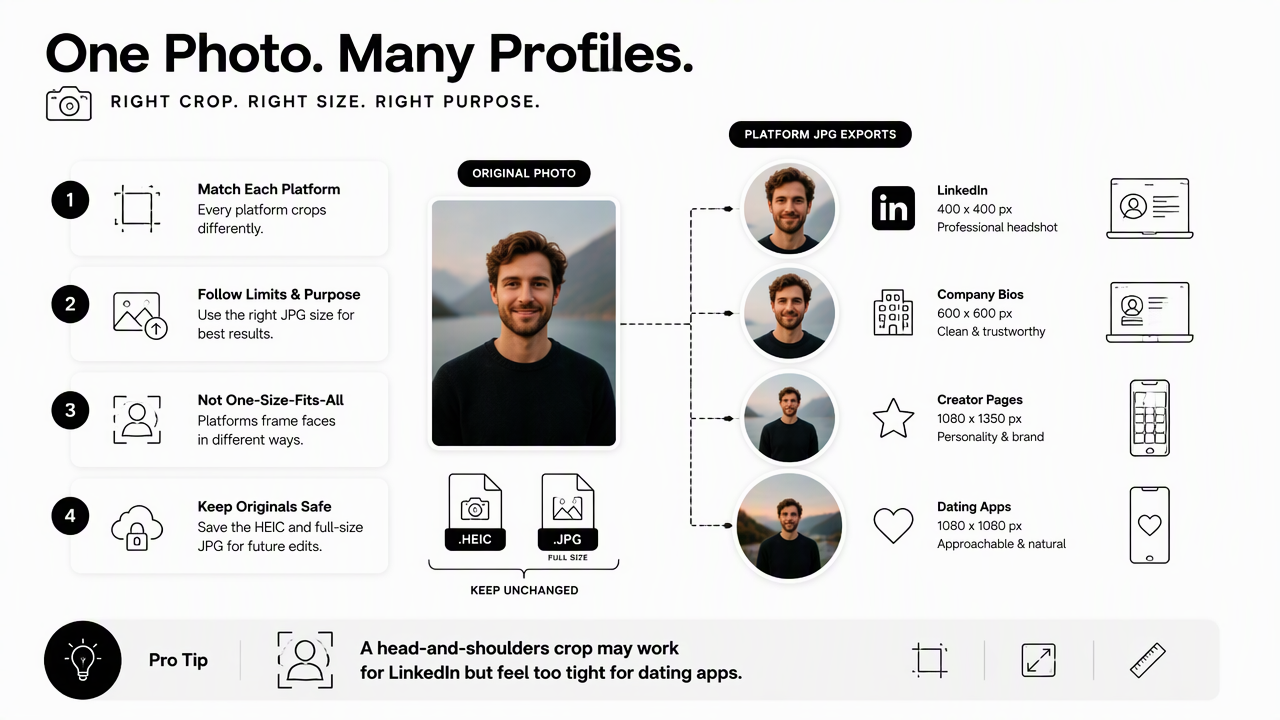
LinkedIn, company bios, creator pages, and dating apps do not frame faces the same way. A head-and-shoulders crop may work for a resume portal but feel too formal for a dating profile. A looser crop may look personable on a founder page but lose face detail in a tiny circular avatar.
After the main JPG export is ready, profile owners can create two or three platform copies. This keeps the source intact while allowing each upload to look intentional.
Platform-ready version guide
| Platform type | Best crop | File approach |
|---|---|---|
| Square, face centered | High-quality JPG with professional lighting | |
| Job site | Square or portrait | Simple file name, no heavy filters |
| Founder page | Portrait or space crop | Natural color, room for layout |
| Creator profile | Square or vertical | Clear face, consistent brand style |
| Dating app | Natural portrait | Warm expression, less corporate styling |
The Looktara platform is most relevant once the selected image is already clean, large, and in a readable format. For people comparing photo styles, looktara.com can be used as a direct next step after the JPG master file has been prepared.
A good platform set might include:
profile-master-fullsize.jpgfor editing.linkedin-square.jpgfor professional networks.website-bio-portrait.jpgfor personal sites.dating-natural.jpgfor social or dating use.
Keeping those files separate prevents a casual crop from replacing a professional one. It also makes future updates faster when a profile refresh is needed.
FAQ
Should HEIC be turned off on iPhone for profile photos?
HEIC does not need to be turned off for profile photos if a reliable JPG export process is used. HEIC saves storage space and preserves the original capture well. The better habit is to keep HEIC as the source file, then export a high-quality JPG copy only when a profile platform, job portal, or editing tool requires it.
Is Export Unmodified Original the right Photos option?
Export Unmodified Original is right for archiving the untouched source, not for a finished profile image with edits. If Photos crops, lighting changes, or portrait adjustments should appear in the final file, Export Photos with JPEG selected is the better option. Both files can be kept when backup and upload versions are needed.
Can iCloud web downloads replace Photos exports on Mac?
iCloud web downloads can work for quick access, but Photos on Mac gives clearer control over JPEG format, quality, and size. For high-stakes profile photos, a controlled Photos export is safer because the final file can be named, checked, and organized before any upload or AI editing step.
What should happen to duplicate HEIC and JPG files?
Duplicate files should be organized by role rather than deleted too quickly. The HEIC can remain the original, the full-size JPG can serve as the editing master, and smaller JPGs can be labeled by platform. Once the master and platform copies are confirmed, unclear duplicates from downloads or messages can be removed.
Conclusion
A strong profile image starts before editing: it starts with the right file. The best iCloud and Photos HEIC to JPG workflow for profile photos keeps the HEIC original safe, exports one full-size JPG master, creates labeled copies for each platform, and checks dimensions before upload. For a polished next step, prepare the clean JPG first, then use Looktara for profile-ready styling, or visit looktara.com when a refreshed headshot set is ready to create.
Generated by EarlySEO.com