
TL;DR
For sharper AI headshots, iPhone users should upload full-resolution originals from iCloud Photos, not low-resolution previews, screenshots, or social media downloads. The best inputs are sharp, well-lit, recent portraits with a clear face, natural expression, and minimal filters.
A blurry upload usually becomes a blurry AI headshot, even when the generator is strong. iCloud Photos for AI headshot uploads matters because iPhones often show optimized previews while the full-resolution original lives in iCloud. For polished LinkedIn profiles, founder bios, creator media kits, and dating profiles, the safest workflow is simple: find the original, download it fully, check clarity, then upload. Tools such as Looktara can produce stronger professional imagery when the source photos are sharp, recent, and consistent.
Table of Contents
What is iCloud Photos for AI headshot uploads?
iCloud Photos for AI headshot uploads means selecting original, full-resolution images stored in Apple iCloud Photos and using them as source files for an AI headshot generator. The goal is to avoid compressed previews, screenshots, filtered copies, or social media saves that can reduce facial detail and weaken the final headshot.
iCloud: iCloud is Apple's personal cloud service, launched in 2011, that stores and syncs data across Apple devices, including Apple Photos, according to the Wikipedia definition provided in the research data.
AI headshot upload: an AI headshot upload is a source image submitted to a model so it can learn facial structure, lighting patterns, expression, and pose before generating polished portrait outputs.
Key insight: AI headshot quality starts before the generator runs. The upload set controls how much real facial detail the model has available.
Most AI headshot pages focus on the generator, price, or style options. The missing step is file quality. A full-size iPhone portrait gives the model more useful information than a screenshot from Instagram, a cropped contact photo, or a thumbnail saved from a message thread.
For people building a wider personal brand, headshots often sit beside other profile assets. A creator or coach may pair a professional portrait with a fitness Instagram profile picture AI generator, brand graphics, and social ad creative. The headshot still needs the cleanest possible source images.
How to download full-resolution iCloud Photos before uploading
The safest way to prepare iCloud photos for an AI headshot tool is to confirm that the original file has downloaded locally before upload. iPhones with storage optimization can show a good-looking preview while keeping the larger original in iCloud, so the upload step should happen only after the image opens at full quality.
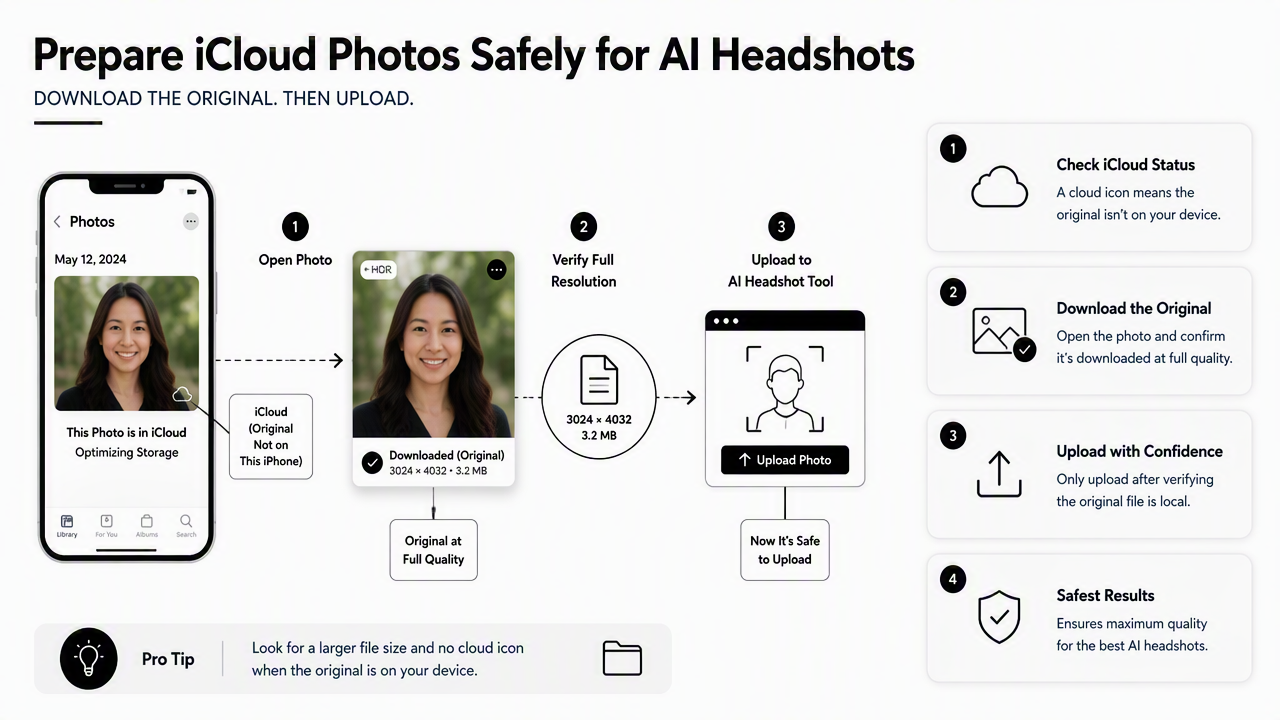
- Open Photos on iPhone, iPad, or Mac.
- Choose recent face-forward portraits with strong light and natural expression.
- Tap or open each photo and wait for any download indicator to finish.
- Zoom to the eyes, hairline, and jawline to check sharpness.
- Export or upload from the Photos library, not from a screenshot or chat preview.
- If using iCloud.com, download the photo file before submitting it.
- Keep the file unchanged unless basic cropping is needed.
Full-resolution upload checklist
| Check | Good source photo | Risky source photo |
|---|---|---|
| Resolution | Original iPhone photo from Photos or iCloud | Screenshot, thumbnail, or app preview |
| Face detail | Eyes, brows, and hairline stay clear when zoomed | Skin and eyes look smeared or blocky |
| Lighting | Soft light from window, shade, or clean indoor setup | Harsh backlight, dark room, colored club lighting |
| Framing | Head and shoulders visible with space around face | Face cut off, extreme close-up, heavy crop |
| Editing | Light crop only, no beauty filters | Strong smoothing, face reshape, heavy retouching |
| Recency | Current hairstyle, glasses, facial hair, and age | Old photo that no longer matches appearance |
A Mac can make quality control easier because the larger screen reveals motion blur and missed focus faster. On iPhone, the simplest test is zooming into the eyes. If eyelashes, pupils, and eyebrows look soft, the AI model may treat that softness as real facial texture.
Full-resolution does not mean every file must be huge. It means the uploaded image should preserve the original facial information captured by the camera. A well-lit standard iPhone image usually beats a larger but blurry image from a mirror, dark room, or compressed messaging app.
What photo types create better AI headshots?
The best AI headshot uploads are clear, recent, varied portraits that show the face from natural angles without heavy filters. A strong set gives the model enough consistent facial identity while still showing useful variety in expression, background, and lighting.
Recommended photo mix for stronger outputs
| Photo type | Why it helps | Suggested use |
|---|---|---|
| Straight-on portrait | Teaches facial symmetry and direct gaze | LinkedIn, resume, company bio |
| Slight angle portrait | Adds cheekbone and jawline information | Founder page, speaker profile |
| Natural smile | Captures approachable expression | Sales, coaching, recruiting |
| Neutral expression | Supports formal professional looks | Legal, finance, consulting |
| Outdoor shade | Gives soft, flattering light | Creator profile, dating app |
| Indoor window light | Keeps skin tone natural | Remote worker, freelancer profile |
A practical upload set should avoid near-duplicates. Ten versions from the same burst sequence are less useful than a smaller group with different lighting and angles. The model benefits from variety, but not contradiction.
Good source images also support other brand assets. A fitness professional, for example, might use a polished headshot for a bio page, then create supporting visuals with a fitness Shopify logo AI generator or a fitness Instagram Facebook ad AI generator. Consistency across portrait, logo, and ads makes the brand easier to recognize.
Best practice: choose photos that look like the same person on different good days, not different people from different eras.
Heavy filters create a common mismatch. If every upload has softened skin, enlarged eyes, or reshaped facial features, the AI may learn a stylized version of the face. That can look polished but less trustworthy for hiring, client work, or professional networking.
Plain backgrounds are helpful but not required. Face clarity matters more than perfect scenery because most headshot tools replace or soften the background anyway. Clothing should also be current, since a generator may infer professional styling from collars, necklines, jackets, and colors in the upload set.
What mistakes make AI headshots look blurry or fake?
AI headshots often look blurry or fake when the upload set contains compressed files, screenshots, inconsistent faces, heavy filters, or poor lighting. The generator can improve presentation, but it cannot reliably recover details that were never present in the input photos.
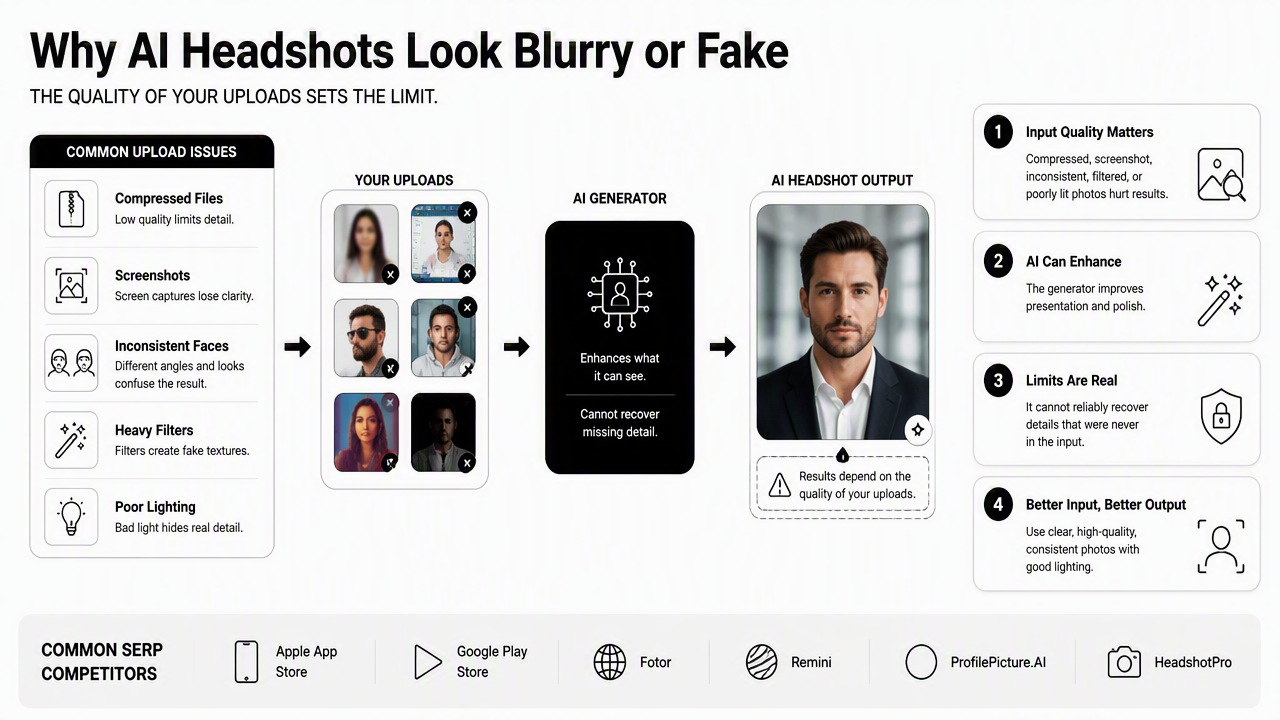
Common SERP competitors, including Apple App Store AI headshot listings, Canva's free AI headshot page, and review articles such as Briefcase Coach's 2025 roundup, tend to explain tool features and upload ranges. Fewer guides explain the iCloud-specific problem: the visible photo may not be the best available file.
Upload choices to avoid
- Screenshots from Photos, Instagram, LinkedIn, or dating apps: screenshots flatten detail and often shrink image quality.
- Messaging app downloads: chat apps can compress images before storage.
- Old profile pictures: outdated hair, glasses, weight, or facial hair can confuse identity.
- Group crops: faces cut from group photos often lack enough resolution.
- Beauty-filtered selfies: smoothing and reshaping can make generated outputs look artificial.
- Mirror selfies with dirty glass: glare and smudges can affect facial edges.
- Low-light images: noise, blur, and color casts may carry into final results.
Not every casual selfie is bad. A sharp selfie in natural light can work well. The problem is usually not informality; it is missing detail. Many dating app photos, creator portraits, and remote-work profile shots are usable when the original iPhone file is selected from Photos rather than saved from a platform.
A second issue is identity conflict. A set with sunglasses in half the images, several different hair colors, and wide age gaps may push the AI toward generic results. Better results usually come from a smaller, cleaner set that matches current appearance.
The Looktara platform is designed for people who need polished visual assets without a studio session. Before using Looktara, the best preparation is selecting full-quality originals from Apple Photos or iCloud and removing any image that fails the eye-sharpness test.
How should iCloud photo uploads fit a 2026 profile workflow?
A 2026 profile workflow should treat iCloud originals as the source layer, AI headshots as the professional portrait layer, and brand assets as the distribution layer. That approach keeps identity accurate while making the final images useful across LinkedIn, websites, creator pages, ads, and social profiles.
Simple workflow from iCloud to finished profile image
- Collect: select current iPhone portraits from iCloud Photos or the Photos app.
- Confirm: open each image fully and check eyes, skin texture, and hairline.
- Cull: remove screenshots, duplicate bursts, harsh filters, and dark photos.
- Upload: submit only the sharpest originals to the AI headshot tool.
- Review: choose outputs that still look like the person in real life.
- Deploy: use the final headshot across professional and social channels.
AI-generated portraits are now part of a broader content stack. A coach might use a headshot for a website bio, a fitness Instagram story AI generator for campaign updates, and a fitness Instagram product photo AI generator for offer visuals. The headshot should anchor that system with a credible face.
Looking ahead to 2027, AI tools will likely keep improving at skin texture, lighting, and style matching. Source quality will still matter because identity, expression, and trust depend on accurate inputs. Better models can polish a strong image faster, but weak uploads still limit realism.
For a reliable starting point, head to looktara.com after preparing a clean upload set. The most useful session begins with originals, not previews, and with photos that match the person clients, recruiters, followers, or dates will actually meet.
FAQ
Are iCloud Photos better than screenshots for AI headshots?
iCloud Photos are usually better than screenshots because they can preserve the original camera file, while screenshots capture only what appears on the screen. Screenshots often reduce detail around eyes, hair, and skin texture. For AI headshots, the original photo from Apple Photos or iCloud.com is the safer upload choice.
Can optimized iPhone storage affect AI headshot uploads?
Optimized iPhone storage can affect uploads when the device displays a smaller local preview while the full-resolution original remains in iCloud. The photo should be opened and allowed to download fully before selection. A quick zoom check around the eyes helps confirm whether enough detail is available.
How many iCloud photos should be selected for a headshot generator?
The best number depends on the tool, but quality matters more than volume. A smaller set of sharp, current, varied portraits usually beats a large set with duplicates, blur, filters, or old photos. Straight-on, angled, smiling, and neutral images give the model useful variety.
Should iCloud photos be edited before upload?
Light cropping can help, but heavy editing should be avoided before upload. Beauty filters, skin smoothing, face reshaping, and strong color edits may teach the AI an inaccurate face. The preferred file is a natural, full-resolution original with clear lighting and minimal alteration.
Conclusion
iCloud Photos for AI headshot uploads works best when the original file is downloaded, sharp, current, and lightly edited. The next step is simple: review the upload set, remove anything compressed or filtered, then start a headshot session with Looktara only after the strongest originals are ready. For brand builders who also need supporting visual content, visit looktara.com and pair the finished portrait with consistent profile, ad, and product imagery.
Generated by EarlySEO.com