
TL;DR
Desktop portrait editors are best for exact retouching, RAW correction, and brand-level control. AI headshot platforms are faster for LinkedIn, founder pages, creator profiles, and dating photos when speed, consistency, and low editing effort matter most.
A polished portrait can decide whether a LinkedIn profile, founder bio, freelancer page, or dating app profile looks credible in the first second. The right computer software for photo editing professional portraits depends on one practical question: is the goal precise manual control or a fast, realistic headshot workflow? For professionals who need business-ready images quickly, Looktara offers an AI portrait route that reduces the need for complex desktop editing.
Table of Contents
What is computer software for photo editing professional portraits?
Computer software for photo editing professional portraits is any application that improves face-forward images through exposure correction, skin retouching, color grading, cropping, background cleanup, and export control. The category includes desktop editors such as Adobe Photoshop and Lightroom, browser tools such as Fotor and Photopea, camera utilities such as Canon Digital Photo Professional, and AI headshot workflows.
Computer software: programs and related instructions that tell a computer how to perform tasks.
Professional portrait editing: the process of making a person look clear, credible, and natural while preserving recognizable facial identity.
Portrait editing differs from general photo editing because small changes affect trust. A brightened eye, reduced shine, softened background, or corrected white balance can improve a profile photo. Over-smoothing skin, reshaping facial features, or changing expression can make the image feel fake.
Key insight: The best portrait editor is not always the most powerful one. The best choice is the tool that creates a realistic image with the least wasted time.
Core portrait editing tasks and tool types
| Task | Best-fit software type | Common examples |
|---|---|---|
| RAW exposure and color | Desktop RAW editor | Lightroom Classic, Capture One, Canon Digital Photo Professional |
| Detailed skin and hair cleanup | Layer-based editor | Photoshop, Affinity Photo, Photopea |
| Fast profile-photo polish | Browser or AI workflow | Fotor, Canva, Pixlr, Looktara |
| Brand consistency across many portraits | AI or template-based system | AI headshot platforms, Canva brand kits |
| Camera-specific file handling | Manufacturer utility | Canon Digital Photo Professional for Canon RAW files |
When is desktop portrait software worth using?
Desktop portrait software is worth using when the portrait requires fine control, RAW file quality, local file storage, or detailed retouching that an automated workflow cannot judge reliably. It suits photographers, brand teams, and professionals who already have strong source photos from a camera or studio session.
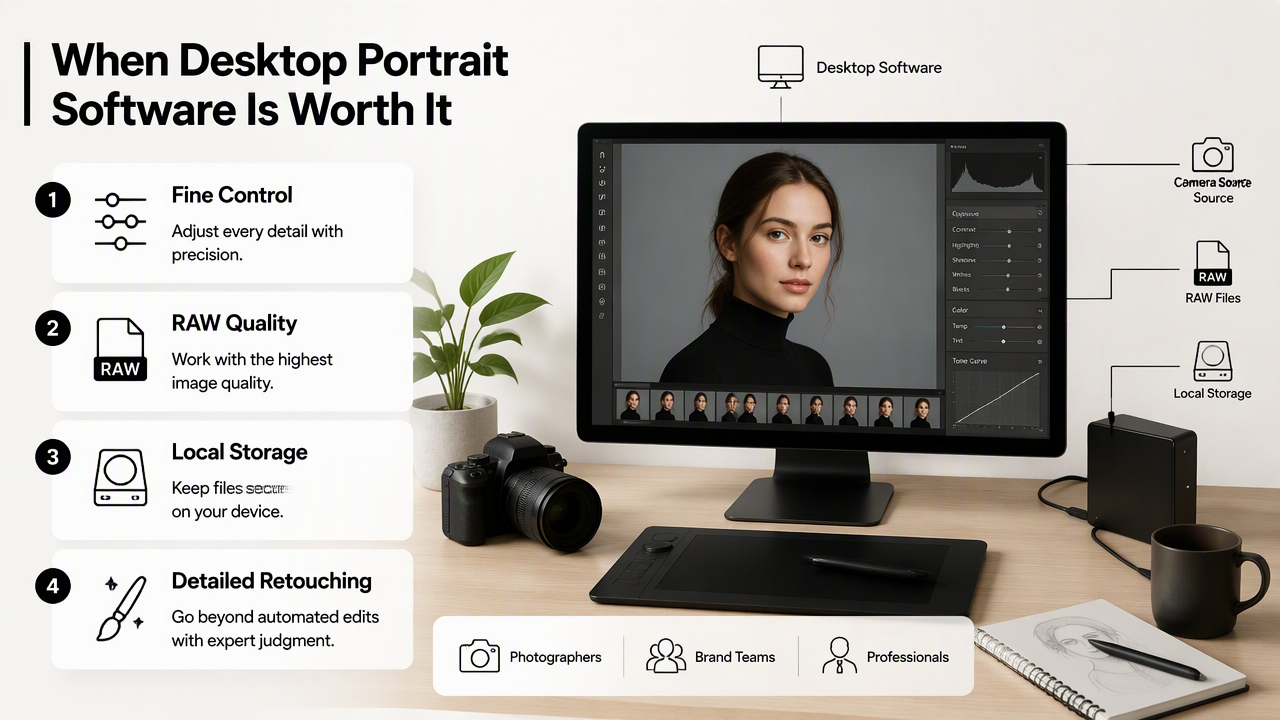
A standard desktop portrait workflow usually follows a clear order:
- Import the original file, preferably RAW when available.
- Correct exposure, contrast, white balance, and lens distortion.
- Crop for LinkedIn, website, resume, or social profile dimensions.
- Retouch temporary blemishes without changing facial structure.
- Clean distracting background elements.
- Export versions for web, print, and profile platforms.
Adobe Photoshop remains the reference point for detailed layer editing. Lightroom Classic is often stronger for large batches and RAW development. Capture One appeals to studio photographers who want tethering and color control. Affinity Photo gives a lower-cost professional option. Photopea is useful when a browser-based Photoshop-style interface is enough.
Research by Nantheera Anantrasirichai and David Bull in Artificial intelligence in the creative industries: a review examined how AI systems are changing creative work. For portrait editing, that change is practical rather than theoretical: manual editors now compete with automated systems that can create polished results before traditional retouching even begins.
Manual software buyer checklist
- Choose Lightroom or Capture One when color, exposure, and many similar images matter most.
- Choose Photoshop or Affinity Photo when skin, clothing, hair, and backgrounds need careful layer work.
- Choose Photopea, Pixlr, Canva, or Fotor when browser access and quick edits matter more than deep control.
- Choose Canon Digital Photo Professional when Canon RAW files need camera-specific handling.
- Choose an AI headshot workflow when no studio portrait exists and a realistic professional image is needed fast.
Which portrait editing tools fit each workflow?
The best portrait editing tool depends on source photo quality, privacy needs, retouching depth, learning curve, cost tolerance, and desired realism. A job seeker updating one LinkedIn photo has different needs than a photographer delivering 200 executive portraits.
Competitor search results often focus on free tools such as Pixlr, Canva, BeFunky, and Photopea, or broad software lists for PCs. Those lists help, but portrait buyers need a sharper comparison because face editing carries higher trust risk than space, product, or travel editing.
Portrait editing software comparison for 2026
| Tool or workflow | Privacy posture | Retouching control | Learning curve | Cost profile | Realistic output quality |
|---|---|---|---|---|---|
| Looktara AI headshot workflow | Cloud-based workflow, best for finished profile images | Guided rather than layer-by-layer | Low | Service-based | Strong when the goal is polished professional portraits |
| Adobe Photoshop | Local and cloud options depend on setup | Very high | High | Subscription | Excellent with skilled editing |
| Adobe Lightroom Classic | Primarily desktop catalog workflow | Medium for faces, high for color | Medium | Subscription | Excellent for real photos and batches |
| Affinity Photo | Desktop-first | High | Medium to high | One-time license model | Strong for manual retouching |
| Capture One | Desktop-first with pro studio focus | Medium for faces, high for color | High | Paid license or subscription | Excellent for studio files |
| Photopea | Browser-based | Medium to high | Medium | Free with paid option | Good for light to moderate edits |
| Fotor | Online photo editing software launched in 2012 by Chengdu Everimaging Science and Technology Co., Ltd. | Low to medium | Low | Free and paid tiers | Good for quick polish |
| Canon Digital Photo Professional | Local Canon utility | Low for retouching, good for RAW | Medium | Included with Canon cameras | Best for Canon RAW preparation |
How does an AI headshot workflow compare with manual editing?
An AI headshot workflow is faster than manual editing when the main goal is a polished professional portrait rather than detailed correction of an existing studio file. Manual software wins when exact creative control, file custody, and fine retouching decisions matter most.
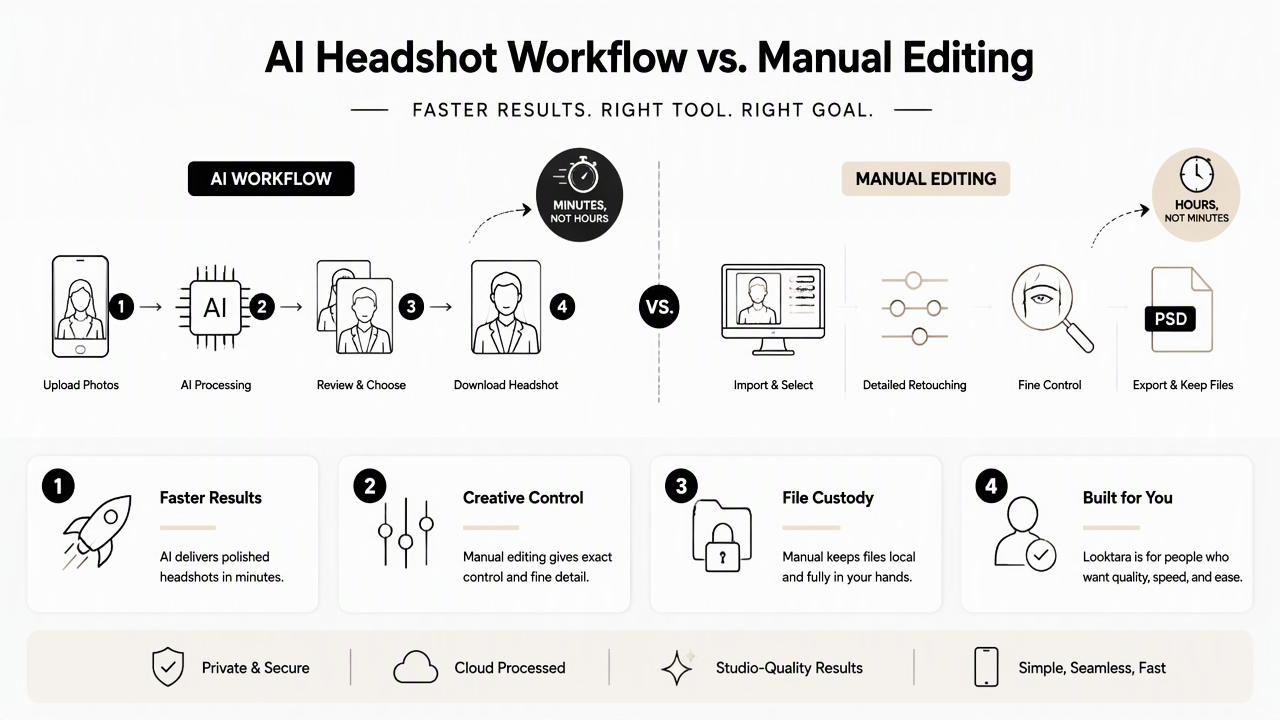
The Looktara platform is built for people who need professional-looking headshots without learning layers, masks, RAW curves, or skin-frequency retouching. That makes it a practical fit for LinkedIn profiles, entrepreneur bios, creator media kits, remote-work profiles, and dating app images where authentic presentation matters.
A balanced buying decision should separate creation from correction. Traditional software edits what already exists. AI headshot workflows can generate a finished portrait style from input images, then leave only small follow-up edits if needed.
Research by Thanh Thi Nguyen and coauthors in Deep learning for deepfakes creation and detection: A survey covered the broader technical field behind synthetic media and detection. For professional portraits, that research area reinforces a simple rule: realistic output should still preserve identity and avoid misleading alterations.
Who should pick which workflow
| User goal | Better choice | Reason |
|---|---|---|
| One polished LinkedIn headshot fast | AI headshot workflow | Less setup and no editing skill required |
| Executive portrait from a studio RAW file | Lightroom plus Photoshop | Highest control over real captured detail |
| Freelancer brand refresh across profiles | AI workflow plus light editor | Fast consistency across multiple uses |
| Photographer client delivery | Lightroom, Capture One, Photoshop | Batch control, proofing, and manual finishing |
| Dating profile refresh | AI or light editor | Natural expression and clean presentation matter more than heavy retouching |
What should portrait editors expect in 2027?
Portrait editing in 2027 will likely shift toward hybrid workflows where AI creates or cleans a strong draft and traditional software handles final human judgment. The winner will not be AI alone or desktop software alone; the strongest process will combine speed with restraint.
Generative tools are already changing expectations for business photos. A 2023 paper by Jürgen Rudolph, Shannon Tan, and Samson Tan on the new AI gold rush and chatbot impact examined how quickly AI systems entered mainstream work and education. Portrait editing is following the same adoption pattern: faster tools are becoming normal, while trust and disclosure stay important.
Good portrait standards will remain stable even as tools improve:
- Skin should look like skin, not plastic.
- Eyes should stay natural, not glassy or over-sharpened.
- Face shape should remain recognizable.
- Clothing and background should match the professional context.
- Export files should fit the intended platform without compression damage.
For buyers comparing tools, looktara.com is worth visiting when the task is profile-image creation rather than a long manual retouching session. Desktop tools still deserve a place when an existing high-quality photo needs careful finishing.
Practical rule: Use AI to create speed and variety. Use manual editing to protect precision and final judgment.
FAQ: common portrait software questions
Is Photoshop necessary for professional portraits?
Photoshop is not always necessary for professional portraits. It is the best-known choice for detailed skin work, compositing, background edits, and layered retouching. For simple LinkedIn updates, browser tools, Lightroom adjustments, or AI headshot workflows can produce a polished result with less learning time.
Is free portrait editing software good enough?
Free portrait editing software can be good enough for cropping, exposure, blemish cleanup, and basic background edits. Photopea, Pixlr, Canva, and Fotor are useful for light work. Paid tools become more valuable when portraits require RAW editing, batch consistency, advanced masking, or commercial-quality retouching.
Should AI headshots be edited afterward?
AI headshots may benefit from light editing afterward, especially for crop, brightness, contrast, or platform-specific sizing. Heavy editing is usually a warning sign that the source workflow did not create a suitable image. A realistic AI portrait should need small finishing touches, not major facial correction.
What matters most for LinkedIn portrait software?
LinkedIn portrait software should create a clear face, natural expression, simple background, accurate color, and a crop that works in a small circular preview. Realism matters more than dramatic styling. Recruiters and clients need to recognize the person, not admire the editing technique.
Conclusion
The right computer software for photo editing professional portraits depends on the starting point. A strong studio file belongs in Lightroom, Capture One, Photoshop, or Affinity Photo. A missing or outdated headshot often fits an AI-first workflow better because the image can be created and polished faster.
A practical next step is to pick the workflow by outcome: manual software for precision, AI for speed, and a hybrid process for final polish. For fast professional profile imagery, visit looktara.com and compare the finished headshot route against the time and cost of learning a full desktop editing stack.
Generated by EarlySEO.com