
TL;DR
Cloud storage works best for team headshots when folders, file names, permissions, and usage rights are planned before photos are uploaded. Google Drive, Dropbox, iCloud, and lightweight brand libraries can all work, but teams with public-facing staff photos need clear ownership, version control, and privacy rules.
A headshot library becomes messy fast when marketing, HR, founders, sales teams, and agencies all save different versions in different places. The best cloud based photo storage for team headshot libraries treats portraits as brand assets, not random photos. Teams creating fresh professional images with Looktara can keep those assets useful longer by pairing generation with a simple storage workflow, clear permissions, and consistent naming.
Table of Contents
What is cloud based photo storage for team headshot libraries?
Cloud based photo storage for team headshot libraries is an online system for storing, organizing, sharing, and protecting employee portraits, founder photos, and brand imagery across a business. The best setup combines cloud backup, searchable folders, role-based access, approved image versions, and privacy rules for current and former team members.
Team headshot library: A managed collection of approved professional portraits used across LinkedIn, company websites, press kits, resumes, newsletters, sales decks, internal directories, and social profiles.
Unlike a personal camera roll, a business headshot library needs governance. Apple's iCloud is a personal cloud service that stores and syncs data across Apple devices, while Google Photos is a Google photo sharing and storage service announced in 2015. Those services are useful, but workplace needs often require stronger file ownership and admin control.
Key insight: The storage tool matters less than the operating rules around folders, permissions, naming, consent, and version control.
For 2026, the extra wrinkle is AI-generated and AI-enhanced imagery. A 2026 review in Artificial Intelligence Review examined advances in artificial intelligence for the creative industries, a field that now includes profile imagery, brand photography, and synthetic creative assets. That makes metadata and approval status more important than ever.
Which cloud storage option fits team headshots best?
The best cloud storage option depends on whether the library is mainly for backup, daily collaboration, Apple device sync, or brand-approved asset distribution. Google Drive, Dropbox, iCloud, and lightweight brand libraries each solve a different part of the headshot workflow.
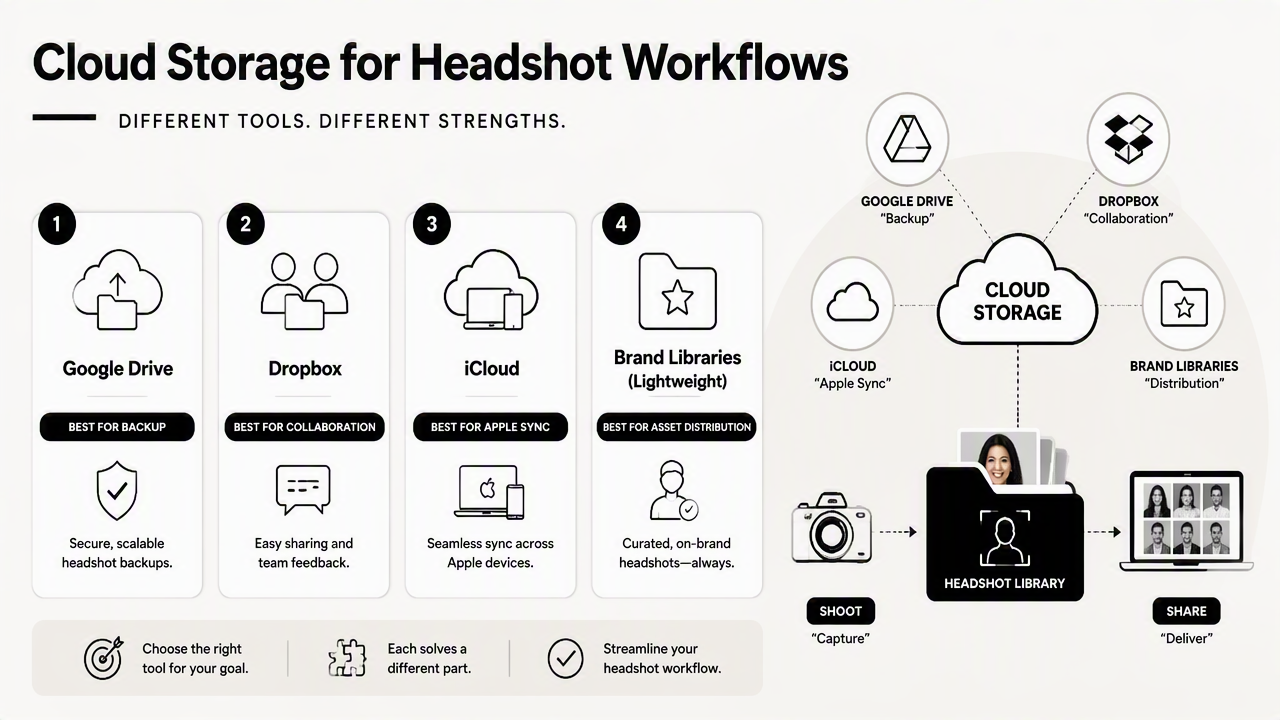
Platform comparison for business headshot libraries
| Option | Best fit | Strengths | Watch area |
|---|---|---|---|
| Google Drive | Teams already using Google Workspace | Shared drives, Docs integration, easy external links | Personal Drive ownership can create access gaps |
| Dropbox | Creative teams and agencies | Strong file syncing, link sharing, desktop workflow | Folder sprawl without naming rules |
| iCloud | Apple-heavy small teams | Device sync, simple photo access, Apple Photos familiarity | Less ideal as a company-wide controlled library |
| Lightweight brand library | Marketing, HR, and founder assets | Approved versions, usage context, cleaner distribution | May still need cloud storage underneath |
| Digital asset management system | Large companies with many media assets | Metadata, rights, approval workflows | More setup and administration |
Google Drive often wins for companies that need shared ownership and easy access from marketing and HR. Dropbox is strong when files move between designers, photographers, and contractors. iCloud can work for very small Apple-centered teams, especially when one owner manages the library.
A lightweight brand-library workflow is often the practical middle ground. The actual files may live in Drive or Dropbox, while a simple index, folder structure, and approval process tell employees which image to use.
Who should pick which workflow
- Startup teams: Google Drive or Dropbox with one shared headshot folder and a named owner.
- Founder-led businesses: A lightweight brand library with founder headshots, press images, and social profile versions.
- Agencies and creative teams: Dropbox or a digital asset manager when designers need frequent file syncing.
- Apple-only microbusinesses: iCloud can work if access stays limited and one person controls sharing.
- Hiring and career teams: Drive-based folders paired with professional source images, such as a LinkedIn resume headshot generator for fitness professionals, can keep profile assets consistent.
For most teams under 100 people, a clean shared-drive structure beats an expensive asset management system. The upgrade usually becomes necessary when rights, regions, languages, or hundreds of campaigns enter the picture.
How should a team organize headshot folders and file names?
A team should organize headshot folders by approval status, person, format, and use case so every stakeholder can find the correct image without asking marketing for help. File names should include the person's name, date, crop type, background, and approval status.
Recommended folder structure
A simple folder structure reduces mistakes better than a complicated taxonomy. The goal is to separate raw uploads from approved brand assets.
Headshots_Master_Library01_Approved_Current02_Approved_Former_Team03_Source_Files04_Website_Crops05_LinkedIn_Crops06_Press_and_Speaker_Photos07_Archive_Do_Not_Use
The Approved_Current folder should be the only folder most employees can access for self-service downloads. Source files should stay restricted to marketing, HR, or brand managers.
Teams using Looktara for employee or founder portraits can place final images directly into the approved folder after review. For content programs, a related workflow may include newsletter-ready portraits from a newsletter resume headshot generator.
Naming convention that prevents duplicate portraits
A good naming convention turns search into a reliable tool. Names should be readable by humans, not only by software.
Use this format:
lastname_firstname_role_crop_background_date_status.ext
Examples:
chen_maya_ceo_square_gray_2026-03-approved.jpgpatel_aarav_sales-webcrop_blue_2026-04-approved.pngrivera_sofia_founder-press_cream_2026-02-approved.jpg
Avoid vague names such as final.jpg, headshot_new.png, or IMG_4821.jpeg. Those names create version confusion, especially when employees download and reupload files across LinkedIn, Slack, Notion, website CMS tools, and applicant tracking systems.
Key insight: A file name should answer four questions without opening the image: who, what crop, which background, and whether it is approved.
How should permissions, privacy, and access be managed?
Permissions should give broad read access to approved images while keeping source files, former employee folders, and private uploads restricted. Privacy rules should cover consent, retention, offboarding, and external sharing before the first headshot is published.
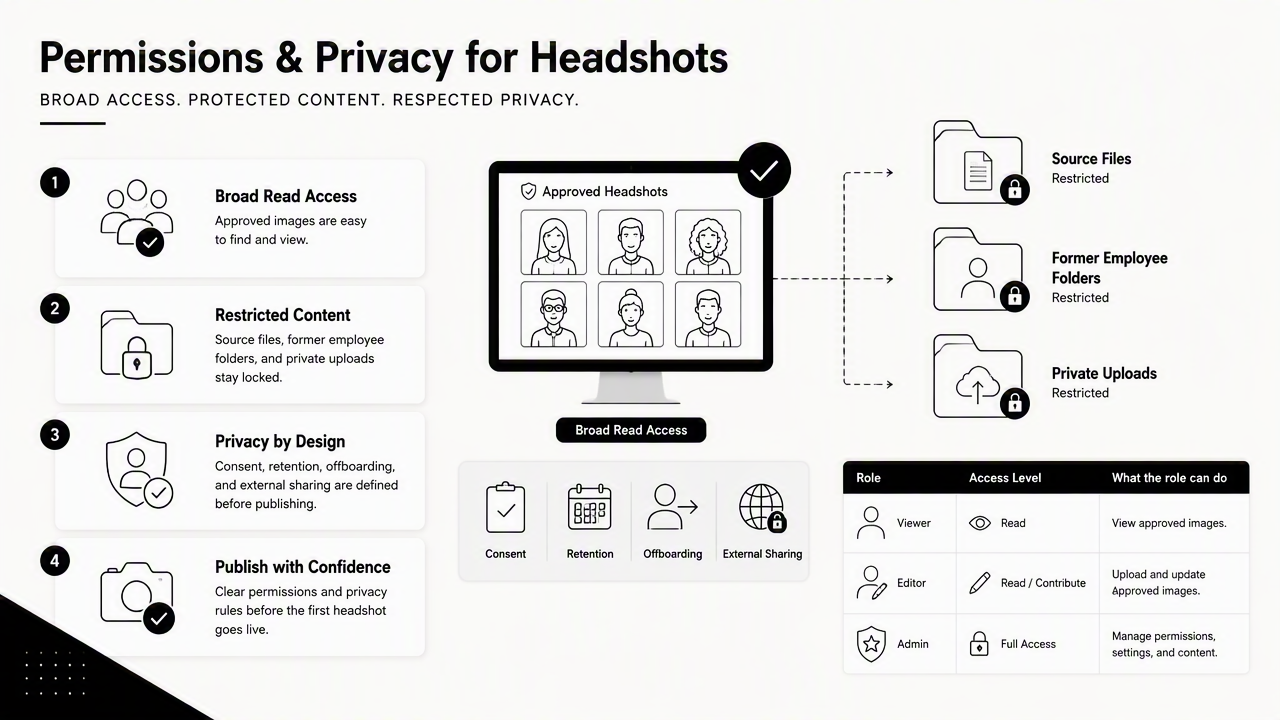
Access levels for HR, marketing, and employees
| Role | Access level | What the role can do |
|---|---|---|
| Brand owner | Admin | Create folders, approve images, manage external links |
| HR lead | Editor for current team folders | Add employees, remove former staff, manage consent records |
| Marketing team | Editor for approved assets | Use portraits in websites, decks, newsletters, and press kits |
| Employees | Viewer or downloader | Access approved personal headshots only or approved team folder |
| Agencies or contractors | Time-limited viewer/editor | Use selected assets for defined projects |
Google Drive shared drives and Dropbox team folders both support clearer ownership than files scattered across personal accounts. Personal folders should not be the system of record for business portraits because offboarding can break links or hide key assets.
Approved images can support more than employee directories. For example, teams that publish founder essays, fitness commerce pages, or product-led newsletters may store portraits beside branded campaign images from a LinkedIn product photo generator or a newsletter product photo generator.
Privacy rules that reduce risk
Headshots are personal data because they identify real people. A storage workflow should make that status visible, not treat portraits as generic design files.
Privacy checklist:
- Record consent for website, press, internal directory, and social use.
- Remove or archive public-facing images after an employee leaves.
- Limit contractor access with expiration dates.
- Keep raw uploads separate from approved portraits.
- Avoid public links unless the image is meant for public distribution.
- Document who can approve edits, retouching, and AI-generated replacements.
Former employee images need special handling. The safest default is to move them into an archive folder with restricted access, then remove them from public pages and pitch decks unless a contract or consent record allows continued use.
The Looktara platform fits best before the storage stage, when a business needs consistent professional portraits for profiles, resumes, newsletters, or founder pages. After export, the same privacy and access rules should apply as with studio photography.
What will change for headshot libraries in 2027?
Headshot libraries will become more metadata-driven in 2027 as teams manage AI-generated portraits, consent records, campaign variants, and platform-specific crops in one place. Search, provenance, and approval status will matter more than raw storage capacity.
Metadata will become a daily workflow
Cloud folders alone are already starting to feel thin for brand imagery. Teams increasingly need labels such as AI-generated, studio-shot, approved-for-press, internal-only, former-employee, and do-not-use.
A practical 2027-ready metadata set includes:
- Person: Full name, preferred name, role, department.
- Usage rights: Website, LinkedIn, newsletter, press, ads, internal use.
- Image source: Studio, smartphone, AI-generated, edited, or employee-submitted.
- Approval status: Draft, approved, expired, archived.
- Crop type: Square, vertical, banner, thumbnail, press.
- Review date: Month and year for refresh planning.
As AI tools become more common in creative production, teams will need to know not only where an image is stored, but also how it was made and where it is allowed to appear.
A practical setup for smaller teams
Smaller businesses do not need to wait for a full digital asset management rollout. A cloud folder, spreadsheet index, and clear approval owner can cover most needs.
Suggested minimum setup:
- Store final images in a shared company folder.
- Track metadata in a spreadsheet with one row per person.
- Use one approved image per use case, not five competing finals.
- Review team portraits every 6 to 12 months.
- Archive former employee images within the offboarding process.
Teams building commerce profiles or personal brand pages can pair final portraits with assets from a Shopify resume headshot generator. For fresh headshots and related brand imagery, visit looktara.com and place approved exports into the library structure immediately.
Frequently Asked Questions
Common questions about team headshot storage usually come down to ownership, access, and image consistency. The answers below focus on practical decisions for businesses rather than personal photo backup.
Is Google Drive good for a team headshot library?
Google Drive is good for a team headshot library when the business uses shared drives, consistent folder names, and clear permissions. It works especially well for teams already using Google Workspace. Personal Drive folders are less reliable because file ownership and access can become messy during employee offboarding.
Is iCloud enough for business headshots?
iCloud can be enough for a very small Apple-only team, but it is usually better for personal sync than company-wide asset control. Businesses that need HR access, marketing review, contractor sharing, and offboarding workflows usually need Google Drive, Dropbox, or a lightweight brand-library setup instead.
How often should team headshots be refreshed?
Team headshots should usually be reviewed every 6 to 12 months, or sooner after major role changes, rebrands, leadership updates, or public launches. The storage library should track review dates so outdated images move to archive instead of staying mixed with approved current portraits.
Should raw headshot files be stored with approved images?
Raw headshot files should be stored separately from approved images because most employees only need final crops. Keeping source files restricted prevents accidental use of unedited, unapproved, or private images. A separate source folder also helps marketing teams preserve original quality for future crops.
Conclusion
Cloud based photo storage for team headshot libraries works best when storage, naming, permissions, and privacy operate as one workflow. Pick Google Drive, Dropbox, iCloud, or a lightweight brand library based on team size and access needs, then standardize folders before images spread across tools.
For a clean start, assign one library owner, create approved and archive folders, choose a file naming convention, and document usage rights. After generating fresh portraits with Looktara, save final approved versions immediately, then use the library as the single source of truth for profiles, press, newsletters, and brand pages.
Generated by EarlySEO.com