
TL;DR
A polished Google Workspace profile photo should be square, face-forward, well-lit, and consistent across Gmail, Calendar, Drive, and Google Meet. AI headshots work best when based on clear selfies, natural expression, simple clothing, and a neutral background, then exported as a clean square image for workplace use.
A profile photo now acts like a tiny business card across Gmail, Google Calendar, Drive comments, and Google Meet tiles. An AI headshot for Google Workspace profile photo can help a professional replace a casual selfie with a consistent, work-ready image without booking a studio session. Tools such as Looktara make that update faster for job seekers, founders, freelancers, creators, and remote teams that need a clean image across daily communication tools.
Table of Contents
What is an AI headshot for a Google Workspace profile photo?
An AI headshot for Google Workspace profile photo is a generated or enhanced portrait designed for a Google Account image that appears across Workspace services such as Gmail, Calendar, Drive, and Meet. The best version looks realistic, recognizable, and professional at small sizes, especially in email threads, meeting tiles, and document comments.
AI headshot: a portrait created or refined with generative artificial intelligence to resemble a studio-style professional photo.
Google Workspace: a cloud productivity and collaboration suite from Google that includes Gmail, Contacts, Calendar, Meet, Chat, Drive, Docs, Sheets, Slides, and related tools.
Google Account: the account used for access, authentication, and authorization across Google services, including the profile image shown in Workspace apps.
Research on creative AI has moved from novelty to production workflows. A 2021 review, Artificial intelligence in the creative industries, examined how AI supports image, media, and design work. A 2024 paper, A Survey of Generative AI Applications, reviewed broader generative AI uses across text, image, audio, and other formats.
Key insight: the goal is not to look artificially perfect. The goal is to look like the same person who appears in interviews, client calls, and team meetings.
How should a Google Workspace headshot be sized and styled?
A Google Workspace headshot should be prepared as a square, high-resolution image with the face centered, the shoulders visible, and enough margin for Google's circular crop. A safe working file is 800 x 800 pixels in JPG or PNG, exported under common upload limits and checked at thumbnail size before final use.
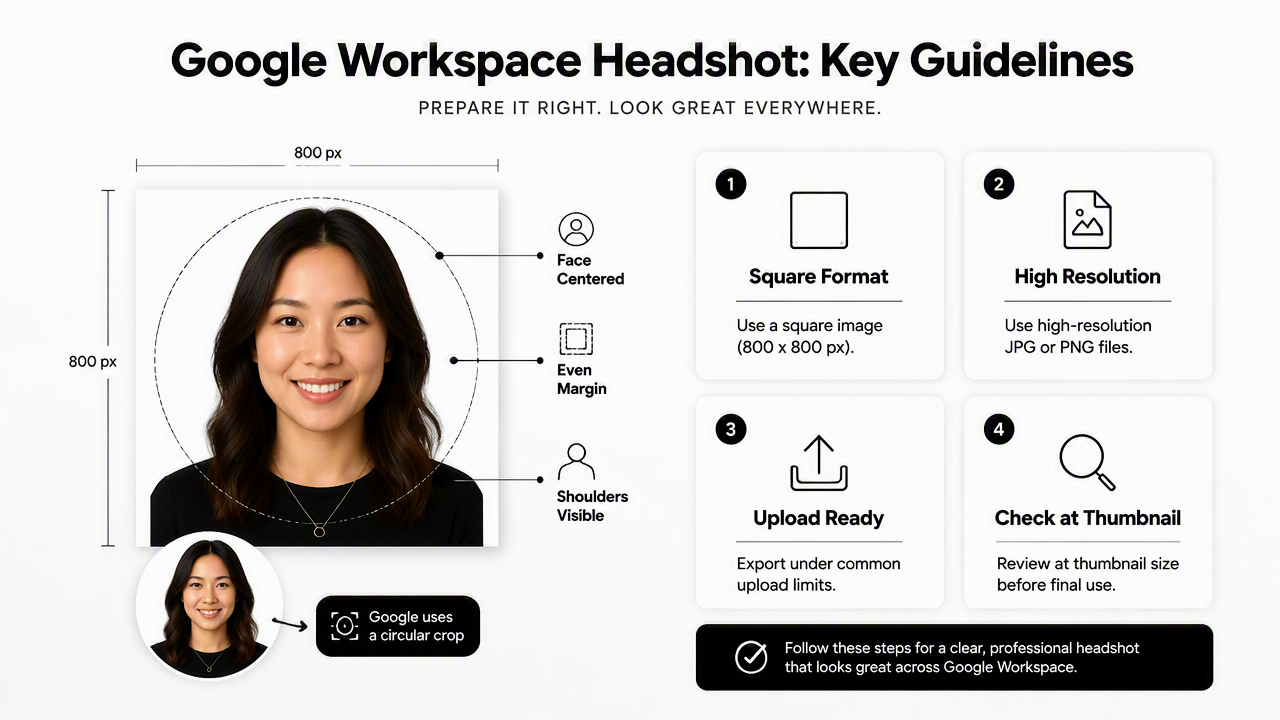
Recommended profile-photo format by Workspace surface
The same Google Account image may appear in different shapes and sizes, so the file should be built for the smallest display first. A photo that works in a tiny Gmail avatar usually works in larger Meet and account views.
| Workspace surface | How the photo appears | Practical prep tip |
|---|---|---|
| Gmail | Small sender avatar and account menu image | Keep eyes and face readable at thumbnail size |
| Google Calendar | Attendee icons and event identity cues | Use a calm, recognizable expression |
| Google Drive | Comment threads, sharing panels, and file activity | Avoid busy backgrounds that blur in small views |
| Google Meet | Participant tile, waiting room, and profile bubble | Use direct eye contact and balanced lighting |
| Google Chat | Conversation avatar and presence indicator | Leave space around the head for circular cropping |
Quick style rules for a workplace-ready image
A strong Workspace profile photo should read clearly in two seconds. Small image areas punish clutter, dramatic lighting, and overly stylized edits.
- Use a square crop, ideally 800 x 800 pixels or larger.
- Place the eyes slightly above the vertical center.
- Leave space above the hair and around both shoulders.
- Choose a plain background, such as light gray, warm white, muted blue, or soft beige.
- Wear clothing that matches the role, industry, and audience.
- Use a natural smile or neutral confident expression.
- Check the final image as a small circle before upload.
Color also matters. High contrast between face, clothing, and background helps the image remain readable inside Gmail and Meet. For many professionals, a simple shirt, blazer, knit top, or clean crewneck works better than loud patterns.
How can professionals create a polished profile photo from selfies?
Professionals can create a polished profile photo from selfies by choosing clear source images, generating realistic headshot options, selecting the most recognizable result, and exporting a square version for the Google Account profile image. The process should preserve identity, not create a new face.
A simple AI headshot workflow for Google Workspace
A repeatable workflow prevents the common mismatch between a polished image and a real workplace presence.
- Gather 6 to 12 clear selfies or casual portraits with different angles and lighting.
- Remove photos with sunglasses, heavy filters, motion blur, or blocked facial features.
- Generate professional options with natural lighting, simple clothing, and a clean background.
- Compare results against recent real photos for accuracy.
- Pick one image that still feels approachable in a small circular crop.
- Export a square JPG or PNG and test it in Gmail, Calendar, Drive, and Meet.
The Looktara platform fits this use case well because it focuses on turning everyday photos into professional headshots for profile updates. That matters for remote professionals whose first impression often happens inside a meeting invite, inbox, or shared document.
Source-photo checklist before generation
Input quality has a direct effect on output quality. Better source photos give the AI model more accurate face shape, skin tone, hair, posture, and expression references.
- Lighting: soft window light or even indoor lighting, not harsh overhead shadows.
- Face visibility: full face visible, no hats, masks, sunglasses, or heavy obstruction.
- Expression variety: a mix of relaxed smiles and neutral expressions.
- Angle variety: mostly front-facing, with a few slight side angles.
- Image quality: sharp photos without aggressive beauty filters.
- Recency: current hairstyle, facial hair, glasses, and general appearance.
AI image systems can produce strong results, but professional judgment still matters. A realistic image should look like a better-lit version of the person, not a different person with similar features.
What mistakes make a workplace profile photo look unprofessional?
The most common profile-photo mistakes are poor crop, distracting background, unrealistic AI editing, outdated appearance, and an expression that feels too casual or too stiff for the workplace. These issues become more obvious because Google Workspace repeats the same image across many work contexts.
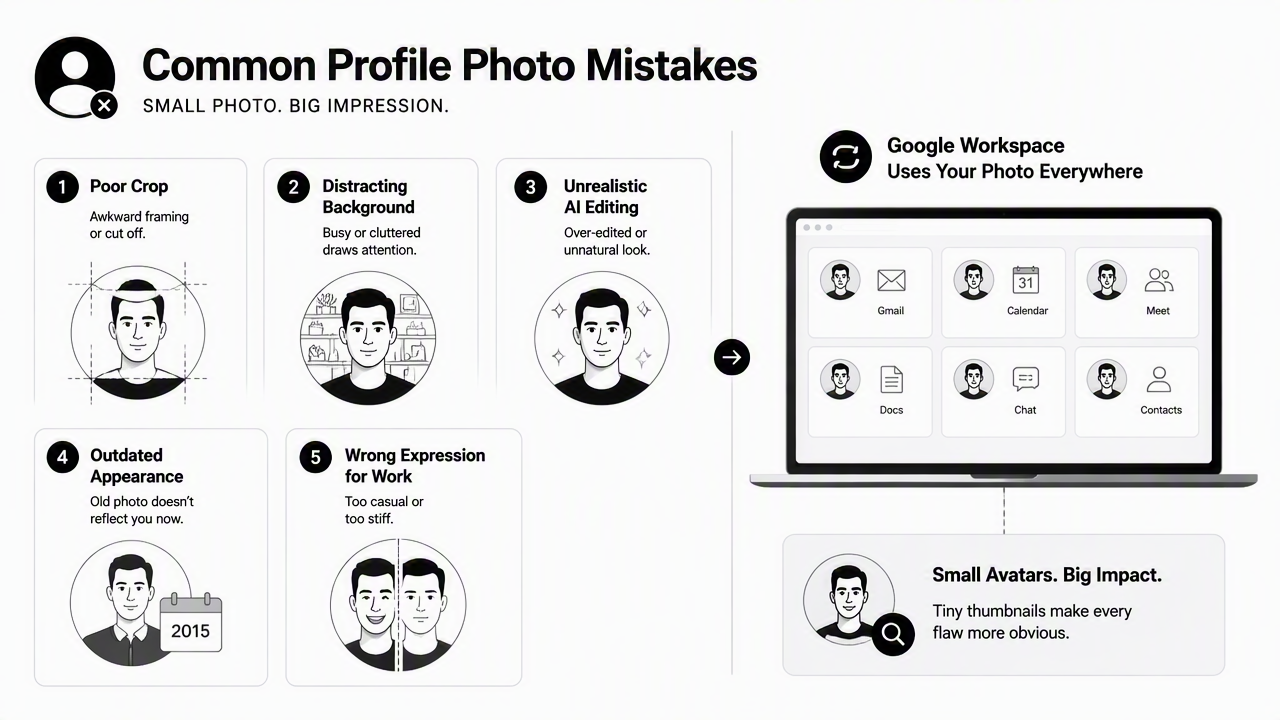
Profile-photo problems to fix before upload
Small avatars magnify simple mistakes. A photo may look acceptable full-size but fail inside a Gmail thread or Meet participant tile.
| Mistake | Why it hurts trust | Better choice |
|---|---|---|
| Face cropped too close | Circular crops can cut hair, chin, or shoulders | Leave margin around the head and upper body |
| Busy background | Details compete with the face | Use a plain wall or soft studio-style backdrop |
| Over-smoothed skin | The image can look synthetic | Keep natural texture and realistic lighting |
| Old photo | Real-life mismatch can feel misleading | Use a current appearance and hairstyle |
| Group photo crop | Other people or partial shoulders distract | Use a solo portrait only |
| Extreme expression | It may not suit business email or meetings | Choose calm, friendly confidence |
Trust and authenticity checks
A headshot used for work should pass three simple tests: recognition, context, and consistency. Recognition means colleagues and clients can identify the person instantly. Context means the image suits the role and communication channel. Consistency means the image aligns with LinkedIn, a company bio, proposals, and meeting presence.
Research into remote identity systems shows that digital presentation is part of trust in online environments. A 2021 study on commercial proctoring systems and online exams examined tools used to support identity and oversight in remote academic settings. Workplace profile photos are not proctoring tools, but the broader point is relevant: visual identity affects how people interpret remote interactions.
Best practice: if the headshot would surprise a hiring manager or client during a live video call, the edit has gone too far.
FAQs about AI headshots for Google Workspace
AI headshot questions usually come down to fit, realism, upload readiness, and trust. The best answers favor practical image quality over heavy editing.
Can an AI headshot be used in Gmail and Google Meet?
An AI headshot can be used in Gmail and Google Meet when it accurately represents the person and follows normal workplace expectations. The image should be current, realistic, and clear at small sizes. A polished headshot works especially well for job searches, client communication, remote work, and team collaboration.
What background works best for a Google Workspace profile photo?
A simple, neutral background works best because Workspace avatars often appear very small. Light gray, off-white, muted blue, beige, or a softly blurred office setting usually keeps attention on the face. Strong patterns, messy rooms, bright colors, and visible objects can distract in Gmail, Drive, and Meet.
Should the same headshot be used on LinkedIn and Google Workspace?
The same headshot can be used on LinkedIn and Google Workspace if the photo fits both professional networking and daily communication. Consistency helps recruiters, clients, and coworkers recognize the person across channels. A slightly warmer expression may work well because Workspace photos appear in direct collaboration settings.
How often should a Google Workspace profile photo be updated?
A profile photo should be updated when appearance changes enough to affect recognition, such as a new hairstyle, glasses, facial hair, or major role change. Many professionals also refresh the image before a job search, company launch, speaking event, or client-heavy season. Recency matters more than perfect polish.
What should professionals expect from AI headshots in 2027?
AI headshots will likely become more identity-aware, brand-consistent, and easier to adapt across work tools in 2027. Expect stronger realism checks, better background control, and more demand for transparent, authentic images. The winning style will stay human: accurate face, natural expression, and professional context.
Conclusion
A strong Google Workspace photo does one simple job: it makes a professional easier to recognize and trust across Gmail, Calendar, Drive, and Meet. The right image is square, centered, current, lightly polished, and realistic enough to match live meetings and real-world introductions.
For a faster update, Looktara can help create a polished AI headshot for Google Workspace profile photo from everyday images. Professionals ready to refresh an inbox, meeting profile, or job-search identity can head to looktara.com and prepare a clean square portrait before the next important email or video call.
Generated by EarlySEO.com